
CREALITY / Product & software guides
A phone mounted beside a scanner does not tell you where the scan is being processed. It may run the capture application, or it may only show the computer's session. Confirm that role before leaving the desk or choosing a portable setup.
Start with a simple planning note: scanner, bridge, processing device and viewing device. List each separately, even when one phone performs more than one role.
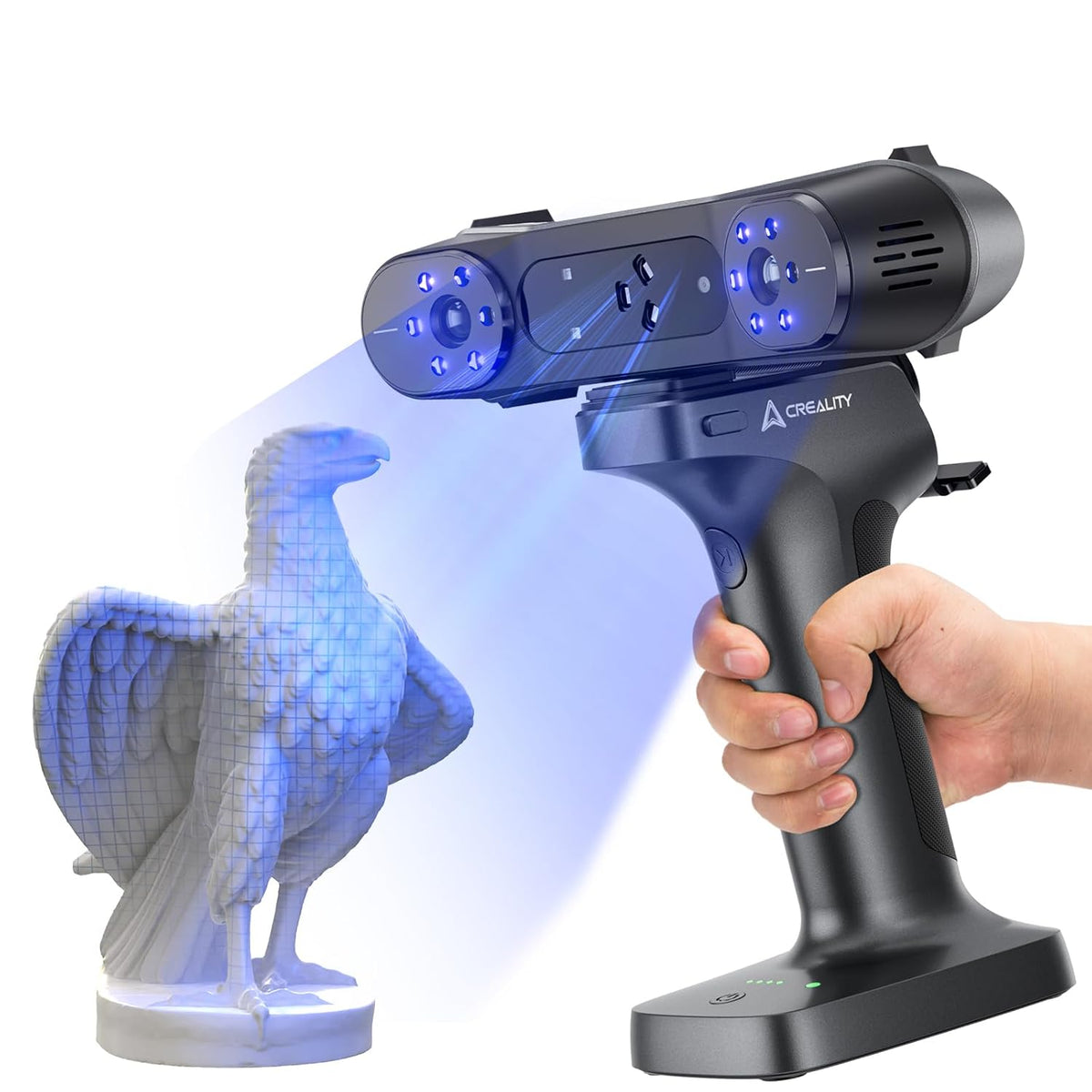
Featured image: Creality AU listing image: RaptorX hardware; check the selected package.
1. Use the exact model's arrangement
Choose one arrangement for the trial and write down which device must remain available throughout. Do not assume that removing a cable removes the need for a computer, or that a similar-looking handle makes two scanner configurations interchangeable.
| Scanner | Documented arrangement |
|---|---|
| RaptorX | Scan Bridge connects the computer workflow; the phone can mirror its display |
| Otter Lite with Lite Bridge | Direct-phone capture, or computer capture with phone mirroring |
| Sermoon X1 | Scan Bridge phone mirroring, not direct-phone capture through that bridge |
2. Check the bridge and package before planning around it
Creality's Otter Lite wireless instructions describe a setup using Lite Bridge. That does not establish that the local Otter Lite Basic package includes it. Check the selected package's contents rather than drawing an inclusion claim from a photograph or a shared product page.
Keep the accessory's actual name in the job record. If you have not confirmed that the required bridge is present, treat the proposed arrangement as unproven. This article is a planning check, not instructions for adapting cables, substituting power equipment or installing another scanner's hardware.
3. Match the software instructions to the session
The official mirroring page separates desktop/mobile software-version branches. For its documented mirroring arrangement, the computer and phone join the bridge's network. X1's phone-mirroring route does not require the mobile app to report a directly connected scanner.
Check the versions actually installed before following an older screenshot or QR walkthrough. A different menu name is a reason to consult the matching instructions, not evidence that the hardware has failed. Keep passwords, QR codes and device identifiers private when documenting the session.
4. Prove both capture and viewing roles
Use a modest trial and check the receiving project on the device you expected to process it. Then check whether the phone is giving you a usable view in the actual working position. A moving preview is helpful, but it does not prove that a recoverable project exists where you intend to save it.
If the normal documented route fails, record whether the problem concerns network visibility, scanner connection or mirrored display. Supply the exact model, bridge and software versions for support. Keep system protections intact: this guide does not ask you to disable a firewall, VPN, antivirus or network adapters to force a result.
Build your CREALITY workflow with Creality AU
Compare RaptorX, the selected Otter Lite package and Sermoon X1 at Creality AU, confirming accessories before choosing your route.
View product and package optionsTechnical references
Product photographs are from Creality AU product listings and identify the pictured hardware. Follow the linked Creality instructions for your exact model and installed software or firmware.