
CREALITY / Product & software guides
Before a large capture, write down what the next task actually needs: a surface reference, a particular interface or a small area of detail. That decision helps you review progress without mistaking an organised-looking workspace for a finished model.
Use the exact scanner's software instructions. Similar stage names do not establish identical features, controls or processing behaviour across Sermoon models.
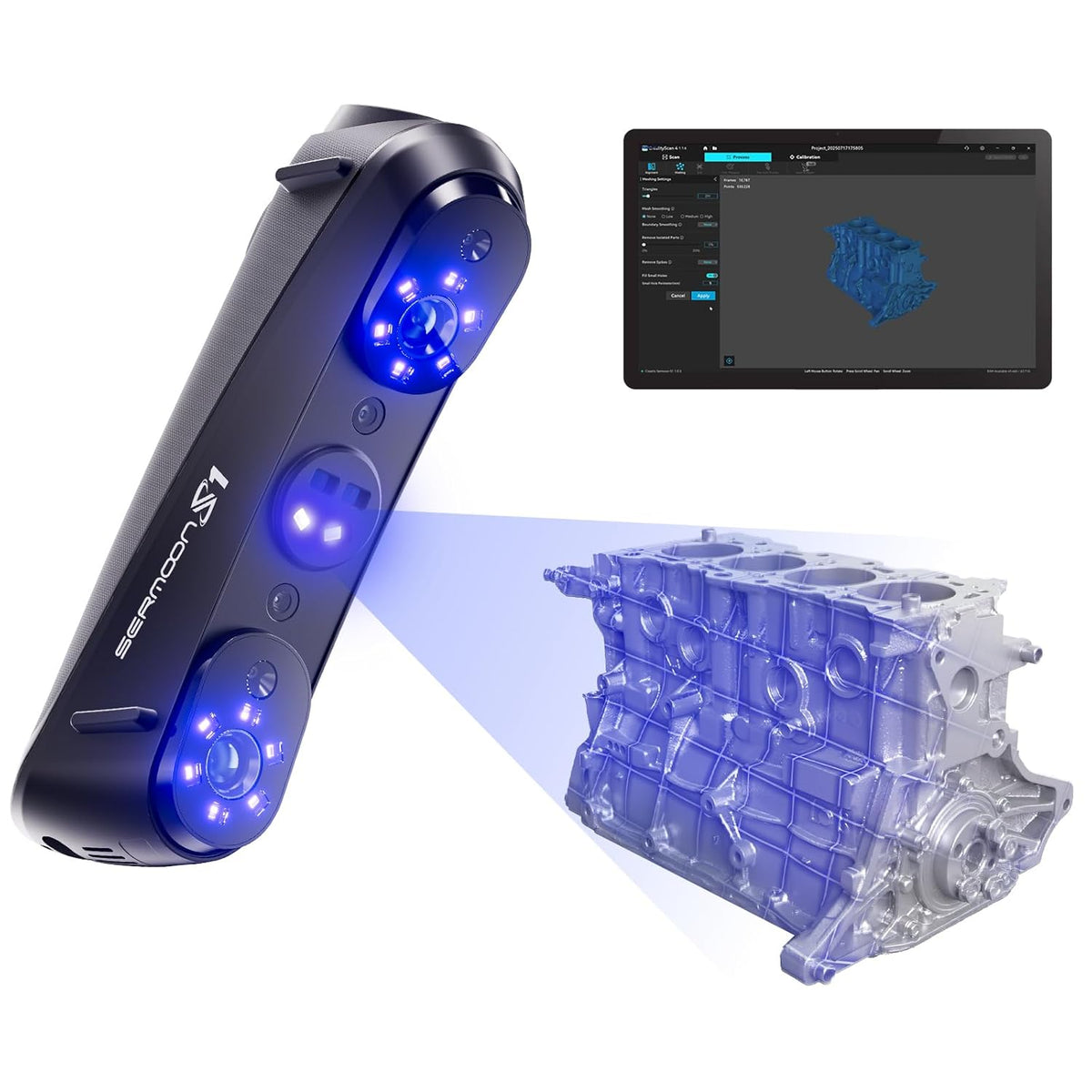
Featured image: Creality AU listing image: Sermoon S1; the separate display inset does not establish a supplied tablet; check the selected package.
1. Give marker and surface stages different jobs
The S1 software manual distinguishes global-marker capture from point-cloud capture and provides a preview stage. X1's separate manual explains that Global Marker records the external markers, whereas point-cloud capture records the surface data. A marker framework is therefore not a finished representation of the object's surface.
Plan a review point between those jobs. Ask whether the references are ready for the intended route, then separately ask which faces and interfaces are actually present in the surface capture. Keep those questions visible in your job notes instead of recording a single vague status such as 'scanned'.
2. Keep X1-specific capabilities in their own row
Do not turn an X1 capability into an S1 promise, or interpret the table as a universal button sequence. Before relying on a specialised option, confirm the model and software version visible in the actual session. If the relevant control is absent, obtain the correct instructions rather than choosing something with a similar name.
| Scope | Documented distinction |
|---|---|
| Sermoon S1 | Marker/point-cloud stages and preview in its own software manual |
| Sermoon X1 | Local Detail is documented for blue-laser mode; photogrammetry is explicitly X1-only |
3. Review one useful section before committing
Choose a pilot that includes the feature the project depends on, not only an easy broad face. Inspect the captured surface from several directions and compare it with the original object. Mark any underside, recess or interface that remains uncertain.
If extra local work is appropriate and supported by your configuration, keep its purpose narrow and compare the result with the earlier capture. More detail should answer a defined question; it should not conceal an unresolved overall relationship. Do not treat a denser display or a reassuring colour as an independent accuracy test.
4. Preserve a clear handover
Retain the source project and label the working result by object and revision. State whether the next person is receiving references, captured surface data or a processed model. Include a short list of missing or uncertain regions rather than silently filling them and presenting them as measured surfaces.
For fit-sensitive work, check the important dimensions independently using a suitable method. A plausible-looking surface is useful evidence, but it does not certify a component, prove a modification safe or replace the responsible person's acceptance decision. Stop for the correct support when the capture stages cannot be reconciled.
Build your CREALITY workflow with Creality AU
Explore Sermoon S1 and Sermoon X1 at Creality AU, checking the exact configuration for the workflow you plan.
View product and package optionsTechnical references
Product photographs are from Creality AU product listings and identify the pictured hardware. Follow the linked Creality instructions for your exact model and installed software or firmware.