
CREALITY / Product & software guides
Before the first scan, choose which device will run your session and how it will connect. A touchscreen on the scanner does not answer every question about the phone, computer or software needed beside it.
Use this decision check with the current Pika instructions. It covers normal connection planning and observations, not firmware recovery, security changes or a substitute list of recommended phones.
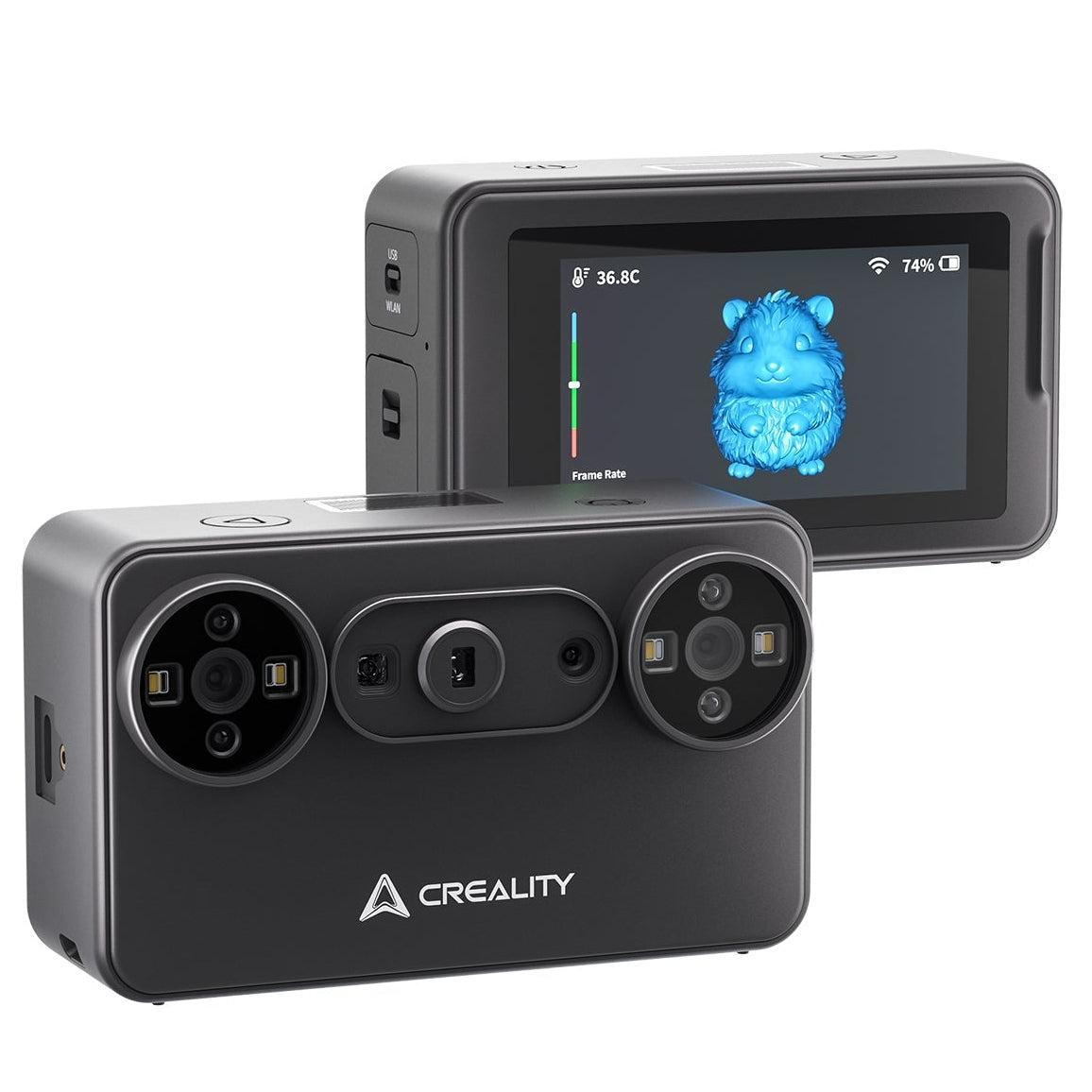
Featured image: Creality AU listing image: Pika hardware, not a connection-settings screen; check the selected package.
1. Pick one documented route
Creality's Pika manual documents phone Wi-Fi, Android-only phone USB, computer USB and computer Wi-Fi. Its physical USB/WLAN mode choice must match the intended route. Do not infer iPhone USB support from the Android instructions.
Check the current official requirements for the actual device and installed software. Record the phone's exact model and processor or the computer's operating system, rather than relying on a similar family name. Avoid changing devices and connection routes together during the first trial.
| Receiving device | Documented connection |
|---|---|
| Android phone | Wi-Fi or supported USB route |
| iPhone | Wi-Fi; not the Android USB route |
| Supported computer | USB or Wi-Fi |
2. Confirm the connection before judging the scan
For Wi-Fi, use the hotspot details shown on your own Pika screen. Keep the password and any connection code out of public screenshots.
Choose a small, stable trial object and leave the capture settings alone initially. First establish whether the receiving device can see the scanner and produce the expected preview. Poor coverage after connection and failure to connect are different observations; changing capture settings cannot establish that a missing connection is working.
3. Separate two different Wi-Fi symptoms
Creality's missing-signal page specifically concerns a hotspot that cannot be detected. A network that is visible but will not connect is a different case. That page also makes firmware version and receiving-device Wi-Fi compatibility relevant evidence.
Write down which case you actually observed. For an absent hotspot, note the chosen connection mode and whether the expected network ever appeared. For a visible network, preserve the exact error and the stage at which it occurred. Do not publish credentials while collecting the evidence, and do not start an update simply to turn an uncertain observation into an action.
4. Finish with a useful support record
If the normal documented setup remains unresolved, stop the trial. Supply the scanner model, receiving-device details, software version, recorded firmware version and a short description of the failed route. One clear screenshot without private connection details is more useful than several unexplained reconnect attempts.
Keep antivirus and firewall protection intact. This guide does not ask you to grant broad file access, change system security or repair the scanner. A successful connection is the starting point for capture checks, not proof that the final geometry will be suitable for its intended use.
Build your CREALITY workflow with Creality AU
View CREALITY Pika at Creality AU and check the selected package and current device requirements before planning your workspace.
View product and package optionsTechnical references
Product photographs are from Creality AU product listings and identify the pictured hardware. Follow the linked Creality instructions for your exact model and installed software or firmware.