
REVOPOINT / How-to & tips
A useful measurement report should make the comparison understandable: which part was scanned, what reference was used, how the data was aligned and what the result actually means. A colourful screenshot alone cannot answer those questions.
Revopoint's interface tutorial and visual-workflow material describe the route from imported data to measurement and reporting. Plan that route before selecting tools, and confirm which functions are available in your software version and licence.
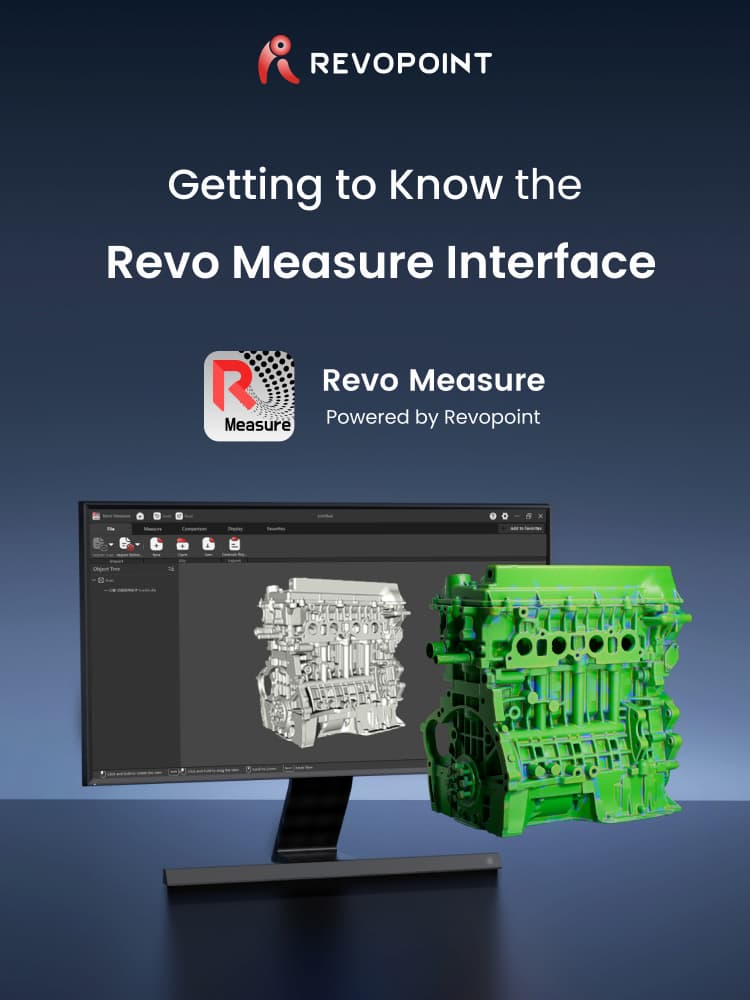
Cover: Supplier introduction to organising a measurement project.
1. Identify the scan and the intended reference

Start a project with a clear part identifier and revision. Import the checked scan and confirm units, orientation and completeness. Keep an untouched copy of the source so later cleanup or alignment decisions can be revisited.
Choose the reference deliberately. It may be suitable CAD geometry or an appropriate reference mesh where supported. A convenient previous scan is not automatically an approved nominal reference. Record what the reference represents and why it is suitable for this comparison.
2. Align according to the measurement question
Decide which surfaces or features establish the relationship between the scan and reference. Review the alignment visually and inspect important interfaces, not just the broad overall fit. A plausible view does not prove that the chosen alignment matches the drawing intent.
Create and check the necessary measurement features before interpreting distances or angles. If the alignment changes, reassess the results that depend on it. Keep the reference choices explicit so another reviewer can reproduce the comparison rather than guessing from the final image.
3. Make visualisation informative, not persuasive

Use mesh display tools to inspect surfaces, edges and difficult regions. Where reference-mesh workflows are supported, keep clear which data is nominal and which data is measured. Rendering makes geometry easier to see; it does not change its accuracy.
Set deviation-map presentation to communicate the relevant differences. Show the scale and units, and use a consistent range when comparing repeated results. Changing colour limits can make the same differences look dramatic or almost invisible, so record those choices with the report.
4. Review the report as a handover document
Include the part identity, reference, relevant measurements and unresolved limitations. Check that the selected views show the features being discussed and that any acceptance judgement follows an agreed method, not a convenient colour threshold.
Save the project and open the exported report separately. Confirm labels, units and graphics remain readable and that the file corresponds to the checked project. Report export is a communication step, not independent approval of the component or a substitute for the required engineering review.
Build your REVOPOINT workflow with Creality AU
Start with one familiar part and a small, clearly defined comparison. Explore Revo Measure and confirm the edition, format support and reporting tools required before building a repeatable inspection routine.
View products and package optionsImages supplied by Revopoint and reproduced with permission. Supplier and community examples are not independent tests by Creality AU. Back to Guides & News