
REVOPOINT / Product guides
Revo Scan 6 brings capture and processing tools together, but its newer visual features answer different questions. AI segmentation helps separate a subject from its background; 3D Gaussian Splatting, or 3DGS, creates a viewable representation of appearance.
For these two features, Revopoint's current Revo Scan 6 feature page names POP 4 and INSPIRE 2. General software compatibility is not a promise that every scanner receives every feature, or that every platform and computer supports the same workflow.
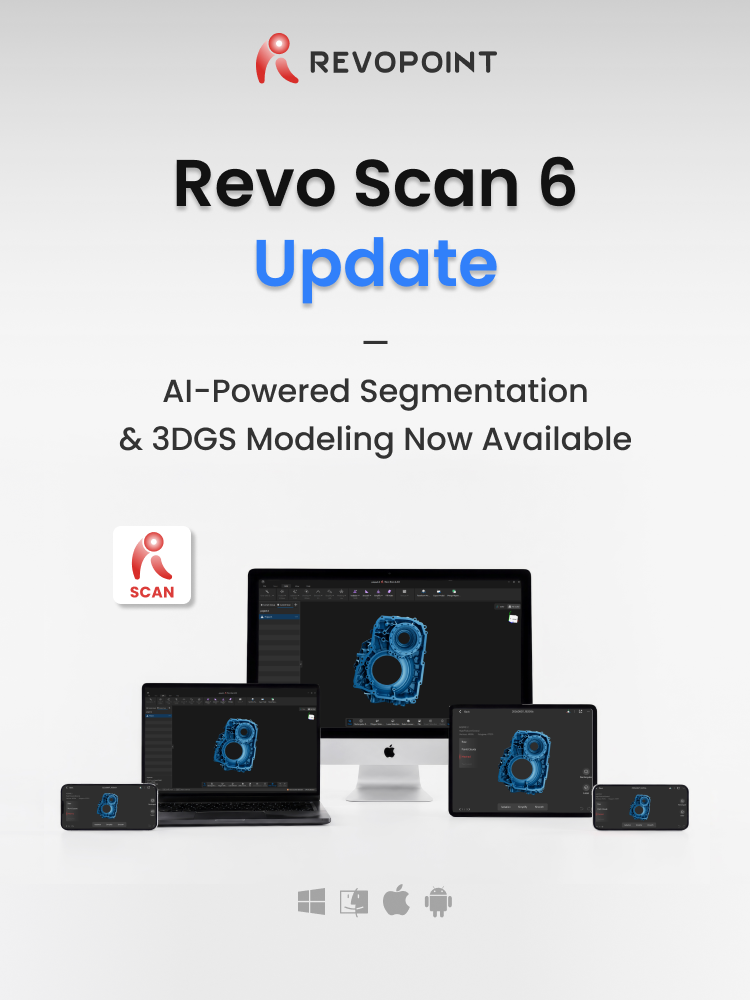
Cover: Supplier introduction to Revo Scan 6. Feature availability depends on the supported scanner and software environment.
1. Decide which deliverable you actually need
For printing or geometric design reference, plan a point-cloud and mesh workflow. For an interactive visual presentation of an object's appearance, investigate 3DGS and whether the intended viewer supports its output.
The supplier identifies .splat as a 3DGS export. It is not an STL-style printable surface, and renaming the extension does not make it one. If a job needs both visual presentation and physical reproduction, treat them as separate outputs that each require checking.
2. Use segmentation as an aid, not a capture shortcut

Set up a stable subject with clear sight lines. When the available AI segmentation tool separates the object, inspect the boundary closely: a thin projection or a support touching the subject can be important to the result.
Background separation does not remove the need for reliable tracking, overlap or suitable surface preparation. Watch whether the required object regions remain captured as the view changes. Do not assume that a cleaner preview means the underlying geometry is complete.
3. Check the geometry and appearance separately
For a mesh, inspect the fused cloud, alignment and surface coverage before repairing holes. Keep the original project so trimming or smoothing can be revised. A visually attractive colour layer must not distract from missing or doubled geometry.
For a 3DGS presentation, rotate the result through the viewpoints people will actually use. Look for distracting background remnants, unstable-looking boundaries or areas that were not adequately captured. Keep the source project as well as the shareable visual output.
4. Check the software environment before a large job
Confirm your installed version, scanner firmware and platform against the official download information. GPU-assisted features have hardware requirements; a supported scanner alone is not enough to establish computer compatibility.
Run a modest sample project first and open the exported file in its destination application. Confirm the viewer accepts the visual format or that the modelling application reads the geometry correctly. Only then scale up to a longer capture or a customer-facing asset.
Build your REVOPOINT workflow with Creality AU
Match the output to the job before capture. Explore POP 4 or INSPIRE 2, while checking current feature and computer requirements for the workflow you intend to use.
View products and package optionsImages supplied by Revopoint and reproduced with permission. Supplier and community examples are not independent tests by Creality AU. Back to Guides & News