
REVOPOINT / How-to & tips
Scanning a car is a planning job as much as a capture job. Access, tracker visibility, surface finish and large data sets all affect whether the result is useful for restoration, design reference or digital archiving.
This guide concerns the original REVOPOINT Trackit system described in Revopoint's vehicle tutorial, not Trackit SR. Optical tracking does not mean that large vehicle projects need no reference planning: the supplier workflow uses anchor points when moving around the car.
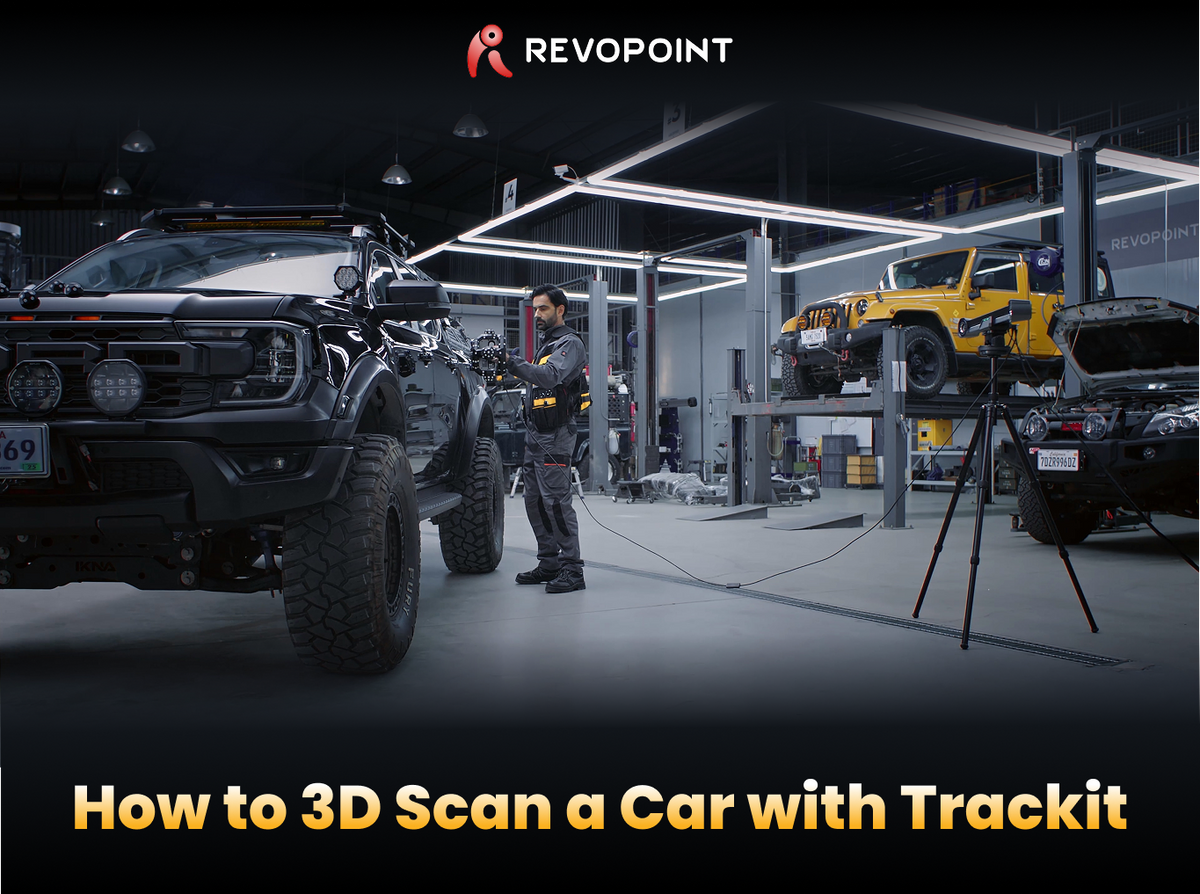
Cover: Supplier illustration introducing a complete vehicle-scanning workflow.
1. Prepare the workspace and prove the setup
Clear a route around the vehicle for the operator, tracker, computer and cables. Keep the car stationary and make sure doors or loose components cannot change position during capture. Confirm your computer and storage suit a project of this size.
Connect the equipment, follow the required warm-up and calibration checks, then scan a small familiar object. This separates equipment problems from vehicle-surface problems. Do not start a full body capture until that trial tracks consistently and produces usable geometry.
2. Divide the car into practical zones

Plan adjoining areas such as the front, each side and the rear, with shared capture around their boundaries. Decide whether you need the entire vehicle or only the region relevant to the design task. Unnecessary coverage adds processing work.
Clean the surfaces you need to record. Glass, clear plastics and shiny trim may require suitable scanning spray after checking compatibility with the finish. Arrange the prescribed anchor references for the tracking setup and leave them undisturbed while adjoining stages are captured.
3. Choose a route you can control

Revopoint describes a global-reference approach and a staged approach. Working section by section is easier to organise alone; a larger continuous workflow may need another person to manage equipment. Choose the method before recording, not midway through an uncertain scan.
Move smoothly across each panel at the working distance shown by the software. Watch actual coverage around panel transitions and recesses. Broad bodywork and fine mounting details have different data needs, so verify your chosen point spacing against the smallest feature the project requires.
4. Review the joins before exporting

Keep the raw capture and process a working copy. Inspect alignment between zones, then remove ground, cables and other unwanted geometry. Review thin edges, gaps and repeated surfaces before applying broad smoothing or hole filling.
Open the export in the application that will use it. Confirm scale, orientation and the particular interfaces needed for the next design step. A car-shaped mesh is a reference, not a finished CAD design or proof that a modified component will fit safely.
Build your REVOPOINT workflow with Creality AU
Start with one panel or adjoining pair of zones to establish a reliable method. See the REVOPOINT Trackit locally and plan the whole capture environment alongside the scanner itself.
View products and package optionsImages supplied by Revopoint and reproduced with permission. Supplier and community examples are not independent tests by Creality AU. Back to Guides & News