
CREALITY / How-to & tips
Before a first capture, write down what you need to see in the finished result and which areas will be difficult to review. A small, deliberate trial gives you something to compare before you invest time in the complete object.
This guide is for the original CR-Scan Otter, not Otter Lite or Lite Basic. Manufacturer-specific tracking notes come from the linked tutorial. The test plan and project review are our editorial suggestions; they are not a promise of accuracy or compatibility with every software release.
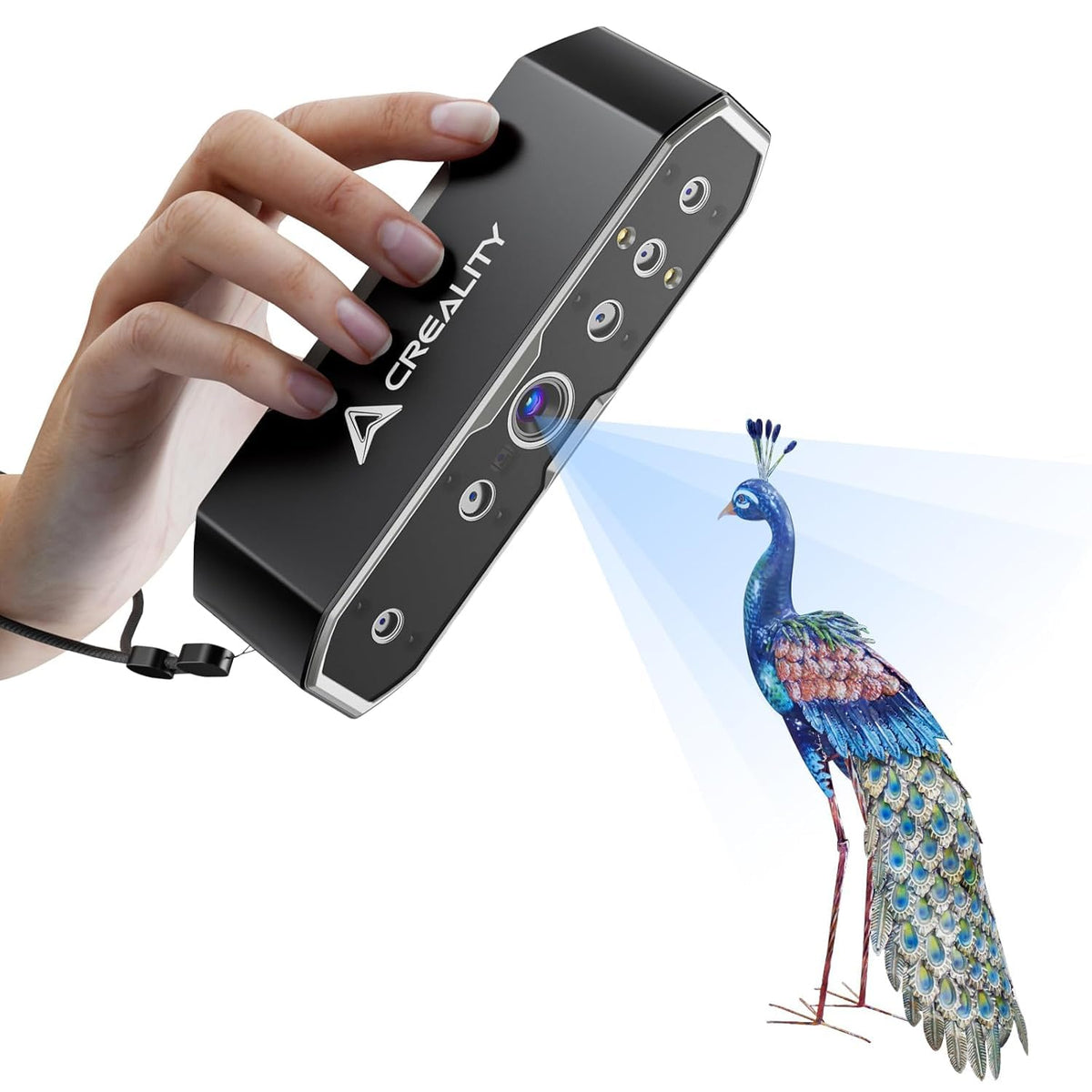
Featured image: Creality AU listing image: the original CR-Scan Otter; check the selected package.
1. Decide which areas will make the scan useful
Choose two or three features that matter to the next task. A decorative object might need its surface detail and overall shape; a design reference might need an opening, an edge and the adjoining face. Keep a simple photograph or sketch identifying those areas.
Start with one difficult but manageable area. A short trial lets you judge the setup while the object is still available. If the important feature does not appear, make that the next problem to solve rather than collecting a larger quantity of the same incomplete data.
| Review item | Keep a clear reference |
|---|---|
| Required openings and edges | Mark them in a photograph or task note |
| Join between views | Review the adjoining captured surfaces |
| Unobserved region | Record the missing coverage separately |
2. Match tracking to the actual object
The official Otter tutorial distinguishes Geometry, Texture and Marker tracking. Geometry relies on distinctive shape; texture uses surface appearance. Feature-poor subjects may need reflective markers. A plain cylinder or broad flat face can provide limited geometric information.
Use that distinction to plan a test, not to label the whole object without looking at it. An ornate side and a plain underside may present different difficulties. If you need markers on a valuable surface, resolve the attachment method before proceeding rather than guessing about its finish.
3. Review a short capture and preserve the comparison
Creality advises following the software's distance guidance and adjusting exposure when needed. Inspect the preview and the captured result using the controls documented for your installed release; the Wiki includes screenshots from different software generations.
Our suggested review is to save the first trial and note the tracking choice, object position and result. Change one item, then compare the same important feature again. A clear record helps you see whether the adjustment improved the useful area, rather than merely making the whole preview look fuller. Keep original data while experimenting with processing.
4. Plan the underside as another view, not a guess
The Otter tutorial describes capturing an object in separate positions and aligning the scans, with sufficient overlapping surface between them. Plan that overlap before turning the object over. Do not assume two scans can be joined simply because each contains a different half.
Our handover check is to inspect the join and the required features from several directions. Note any surface that was not observed. A smooth-looking result is not evidence that hidden geometry was measured, and a filled gap should not quietly become a trusted design feature. For fitting or measurement work, arrange a separate check appropriate to the task.
Build your CREALITY workflow with Creality AU
See the original Creality CR-Scan Otter. Confirm its exact package and computer requirements, and keep Otter Lite instructions separate when choosing a setup.
View product and package optionsTechnical references
Product photographs are from Creality AU product listings and identify the pictured hardware. Follow the linked Creality instructions for your exact model and installed software or firmware.