
CREALITY / How-to & tips
Before starting a scan, decide what the finished model must help you do. A recognisable display model, a design reference and a part that must fit something else need different checks. A longer capture is not automatically a better answer to an unclear brief.
This workflow is for the original CR-Scan Raptor, not Raptor Pro or RaptorX. The model-specific notes follow the linked Creality tutorial. The trial plan, acceptance questions and project notes are our editorial recommendations, not a manufacturer accuracy claim.
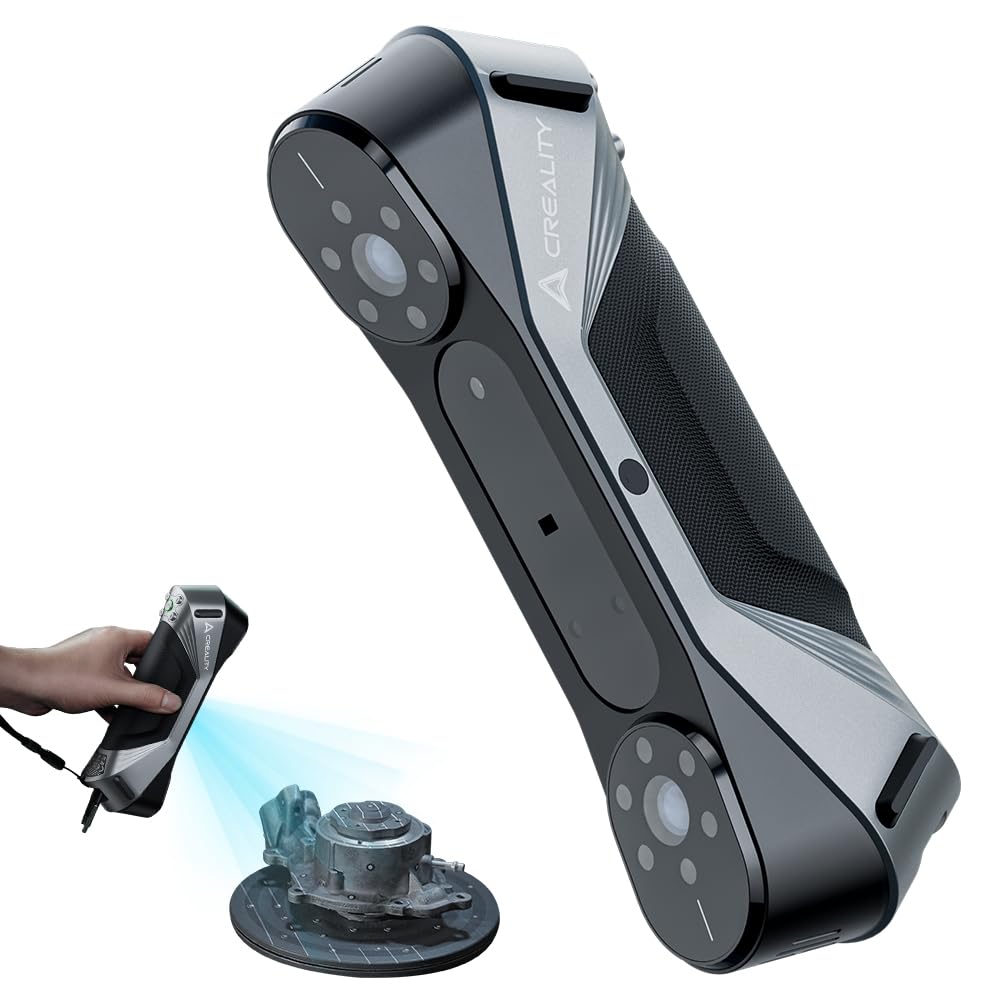
Featured image: Creality AU listing image: the original CR-Scan Raptor; check the selected package.
1. Give the trial a specific purpose
Choose a small, manageable area that includes something you care about: an edge, a recess or a change in surface shape. Write down what you need to see afterwards. For example, a housing project may need a readable opening and an uninterrupted surrounding surface rather than the most attractive overall preview.
Keep a photograph of the real object for comparison. If the result will inform a fitted component, plan a separate dimensional check; do not treat a plausible-looking surface as proof that the part will fit.
2. Choose the scanning route before arranging markers

Follow the supplied laser-safety instructions and keep the scanning light away from eyes. Do not begin if the setup cannot meet those precautions.
The official Raptor tutorial separates blue-laser scanning from NIR. Its blue-laser route requires reflective circular markers. For a small object, markers may be placed on a scanning surface; larger objects can need markers on the object. NIR offers different tracking choices, including marker-free scanning where the subject provides suitable features.
Prepare one route for the trial rather than changing several things midway. If the object cannot accept adhesive markers, resolve the setup before capture rather than improvising on a valuable finish.
3. Review the preview instead of rushing past it
Creality recommends using the software's distance guidance and checking exposure. For laser capture, both marker visibility and laser brightness matter; overexposure is not an improvement. Follow the matching controls in your installed Creality Scan release rather than assuming that another scanner's screenshot is identical.
Our suggested checkpoint is a short capture, followed immediately by review of the chosen feature. If it is missing or unstable, note the symptom and change one relevant setting or setup item. Keep the first trial as a comparison. Do not make the trial longer just to avoid examining why it is failing.
4. Check coverage before committing to the full job
Look at the trial from more than the initial viewing angle. Is the recess actually represented, or does its edge merely look convincing from the front? Identify any unobserved area before dismantling the setup. Separate a capture gap from a presentation issue in your notes.
Save the project with the object name, date and chosen mode. Retain the original data while experimenting with processing. If you contact support, include the exact scanner model, software version, connection arrangement and a concise description of the failed area. Those details are more useful than saying only that the scan looks wrong.
Build your CREALITY workflow with Creality AU
Explore the original Creality CR-Scan Raptor. Confirm the computer and package requirements for that exact product before planning your capture setup.
View product and package optionsTechnical references
Product photographs are from Creality AU product listings and identify the pictured hardware. Follow the linked Creality instructions for your exact model and installed software or firmware.