
CREALITY / How-to & tips
Changing a spool should not turn into a repair session. Start by identifying whether you are making an ordinary change on an idle printer, responding to a run-out prompt, or dealing with filament that will not move. Those situations need different decisions.
The official K1 Max pages linked here were last updated in January 2024. Hardware and screens may differ on later revisions, including K1 Max 2025 or machines with upgrades. Confirm your exact setup first. The preparation and record-keeping checklist is our editorial advice, not a replacement for the matching machine manual.
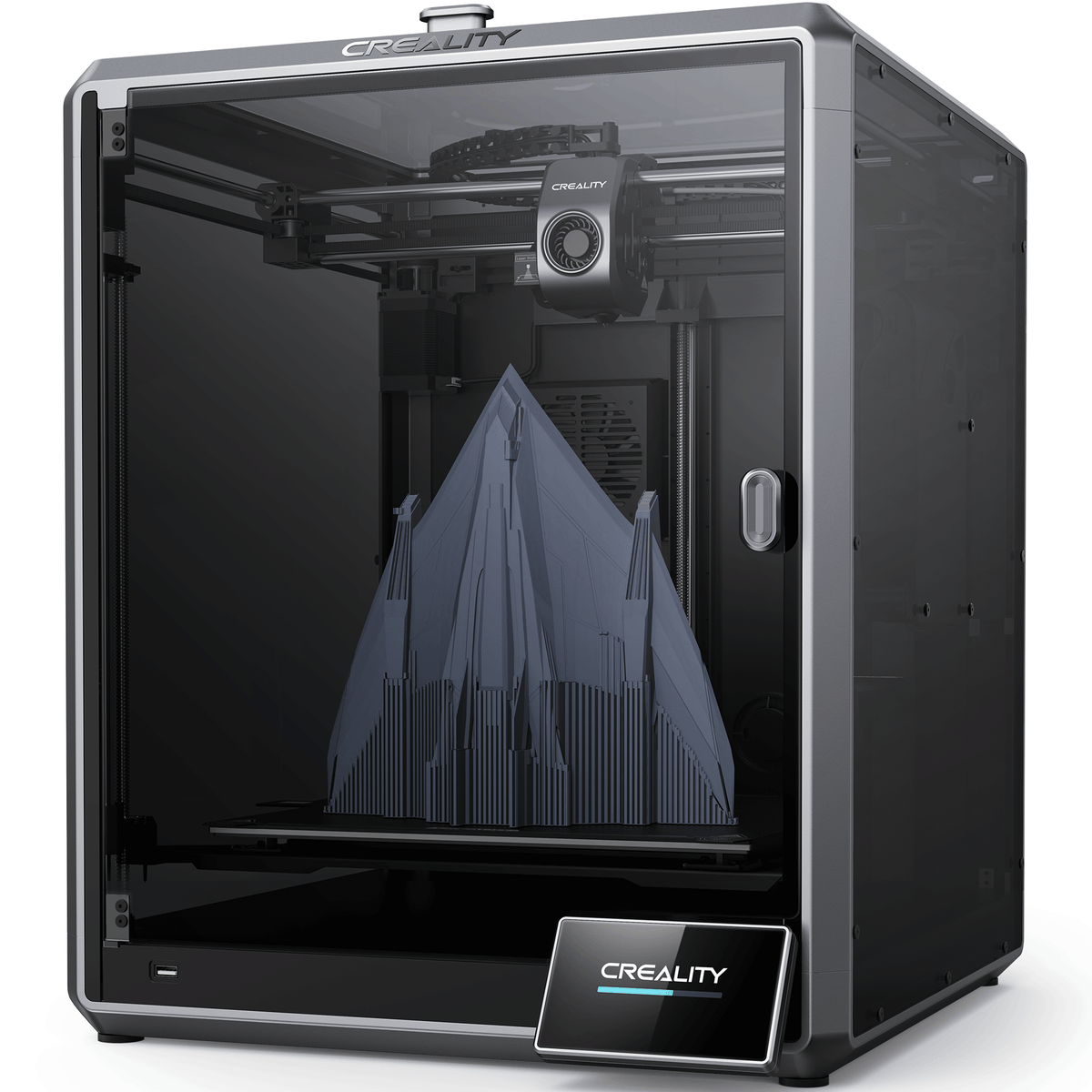
Featured image: Creality AU listing image: K1 MAX; confirm the hardware revision; check the selected package.
1. Prepare the change while the situation is clear
Before touching the filament path, read the printer's current status and the relevant official procedure. Keep hands clear of hot and moving parts. Do not combine this ordinary-change checklist with a clog-clearing, nozzle-removal or upgraded-CFS procedure.
Our suggested preparation is to place the replacement spool nearby, confirm its material label and note the current print status. If you are responding to run-out, photograph the prompt before dismissing it. That gives you a clear starting point if the change does not proceed normally.
| Checkpoint | Your review |
|---|---|
| Before the change | Record material and current job status |
| Assisted movement | Keep hands clear of hot and moving parts |
| Unexpected resistance | Stop and record the prompt |
| After loading | Check the observed extrusion result |
2. Let the retract operation finish
The official K1 Max unload guide describes selecting Retract, waiting for completion and then removing the filament from the PTFE tube. This is the assisted route; do not pull early to hurry the cycle.
A useful stop point is any unexpected resistance or an operation that does not complete. Repeating the same pull more forcefully does not establish the cause. Record what the screen reports and seek the correct troubleshooting guidance instead of turning a routine change into an unplanned dismantling job.
3. Use the matching assisted load procedure
Creality's K1 Max load guide recommends its semi-automatic method: unlock the extruder for insertion, feed the filament, lock the extruder and use Extrude. Observe whether filament emerges, then wait for the operation to finish. Follow the exact illustrated path for your hardware rather than copying a different printer's lock or tube arrangement.
Our check is to look for the expected result, not simply the disappearance of a message. If you are unsure which part is the lock or whether your machine matches the illustration, stop before changing it. This guide does not prescribe a universal nozzle temperature for different materials.
4. Treat run-out as a paused-print workflow
The official K1 Max run-out replacement guide begins with the replacement prompt, removes the remaining old filament, loads the new filament and confirms extrusion before Resume Printing. Its illustrated screen wording is version-specific; do not assume an idle spool change presents the same prompts.
Before resuming, compare the material you loaded with the job you intended to continue. Afterwards, watch the next portion of the print and note any visible change. For a critical part, review the finished result against the job's requirements; a resumed job is not automatically an acceptable part. Keep the screen photo and a brief outcome note if you need support.
Build your CREALITY workflow with Creality AU
See Creality K1 MAX and check the exact model and supplied setup. Persistent feeding trouble belongs in a separate diagnosis, not a more forceful version of this checklist.
View product and package optionsTechnical references
Product photographs are from Creality AU product listings and identify the pictured hardware. Follow the linked Creality instructions for your exact model and installed software or firmware.