
CREALITY / How-to & tips
A backup spool is useful only when the printer can identify it correctly and feed it reliably. Before a longer job, separate three questions: does the spool suit the CFS, is its material information right, and is the intended refill sequence ready?
This guide concerns K2 Plus used with standard CFS. It does not mean every K2 Plus package includes CFS, or that K2, K2 Pro, CFS Lite and CFS Nano share these instructions. The technical checks follow Creality's linked documentation; the trial plan and job notes are our editorial suggestions.
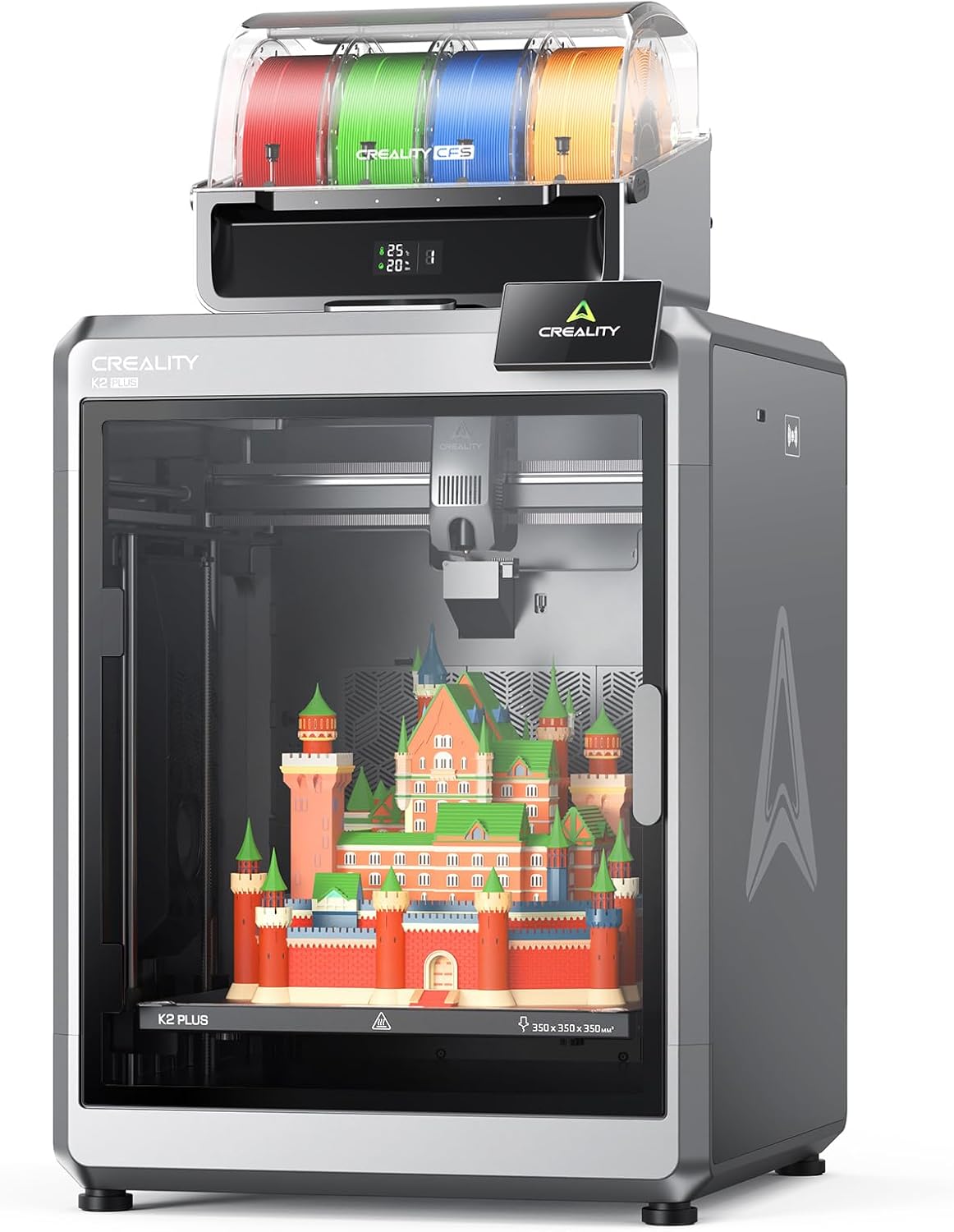
Featured image: Creality AU listing image: K2 Plus; pictured accessories do not establish package contents; check the selected package.
1. Check the spool before putting it into the system
Creality's standard CFS compatibility page specifies a spool diameter of 197–202 mm and width of 42–68 mm. It warns against deformed, rough or unsuitable-size spools, flexible materials such as TPU, and moisture-softened PVA or BVOH. Some harder materials can also break in the feed path. CFS suitability is separate from the printer and nozzle's material capability.
Our preparation check is simple: inspect the actual spool, not just its box or listing. Set aside anything visibly damaged and resolve an uncertain material choice before loading. Keep the material label nearby so that you can compare it with the information on the printer.
2. Identify the material in each slot
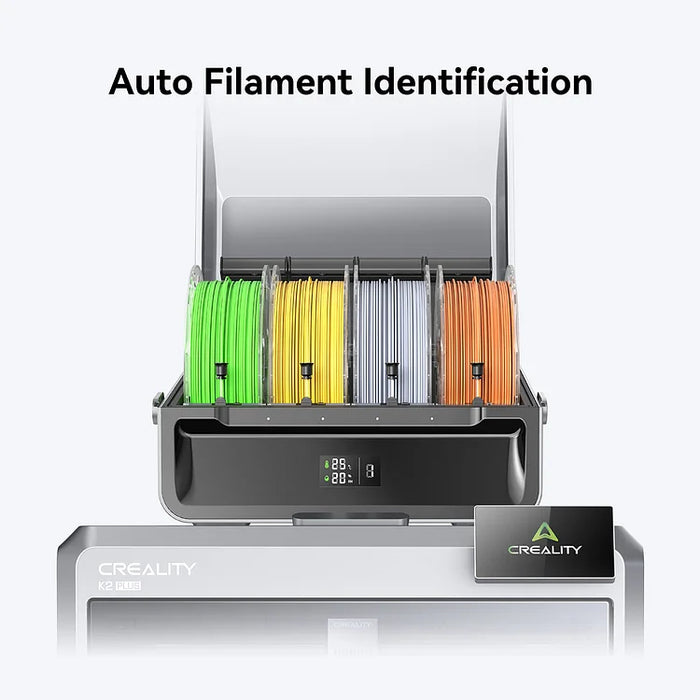
The CFS loading guide describes gently feeding filament into the corresponding slot until the mechanism takes it. Non-RFID filament requires its material details and colour to be entered on the printer. Supported RFID filament can populate information automatically when insertion detection is enabled. Check the displayed information rather than assuming recognition has succeeded.
For a first session, note the slot number beside the spool's material and colour. This small record is useful if you later change a spool or ask for help. Do not select a familiar-looking material name simply to remove an unknown symbol from the screen. Resolve the identification first.
3. Prepare the refill deliberately
Creality's K2 Plus automatic-refill guide describes preparing matching filament information in different CFS slots, enabling automatic refill in the multicolour settings and viewing the proposed sequence with Auto. Its examples use matching name and colour; do not treat this as permission to substitute a different material. Menu wording may differ with firmware.
Before confirming, compare the proposed backup with the physical spool. If the screen and your slot notes disagree, stop and correct the mismatch. Treat the preview as something to check, not just a button to pass on the way to printing.
4. Use a small rehearsal before a valuable job
Our suggested rehearsal is a modest, non-critical print using the intended material setup. Stay available to observe normal feeding and any prompts. A successful ordinary print is not proof that a run-out transition has been tested; record exactly what you observed.
Keep notes on the slot arrangement, material profile and outcome. Change one uncertain item at a time. If feeding fails or the displayed sequence is unexpected, retain the details and contact support rather than repeatedly forcing filament or dismantling the CFS. Automatic refill is a convenience feature, not a guarantee that a print can be left unattended.
Build your CREALITY workflow with Creality AU
View the Creality K2 Plus product and package options. Check the exact included accessories and confirm that your setup uses standard CFS before following this workflow.
View product and package optionsTechnical references
Product photographs are from Creality AU product listings and identify the pictured hardware. Follow the linked Creality instructions for your exact model and installed software or firmware.