
REVOPOINT / How-to & tips
When walking around an object, think about where you need to see the scan preview without losing sight of your surroundings. A nearby screen is useful only if its position and connection suit the job.
Revo Mirror sends a computer's scanning preview to a mobile device alongside Revo Metro, Revo Scan 6 or Revo Track. Plan it as a companion to the desktop workflow, not a reason to omit the computer.
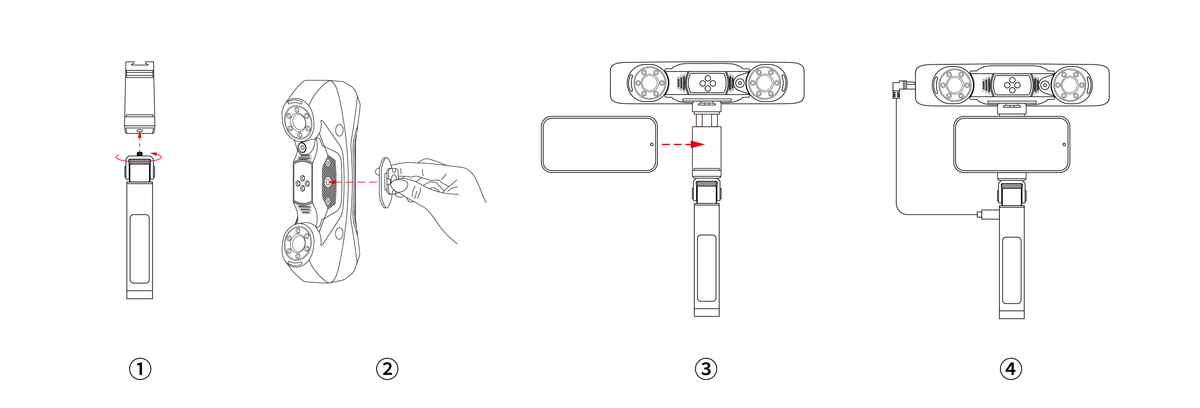
Featured image: Official MetroY Mobile Kit illustration; check package contents separately.
1. Plan the complete arrangement
Sketch where the object, scanner, computer and phone will sit. Keep power, cable reach and safe movement in that plan. Decide who will watch the preview and who will operate the scanner if two people are involved.
Use a suitable support or phone holder and check the actual accessory package before buying. Do not balance a phone on the object being scanned or let the extra display distract from safe handling. Keep the computer accessible during the initial trial so you can compare both views.
2. Choose the network route your scanner supports

The manual offers two arrangements: compatible wireless scanners use the scanner's Wi-Fi for both computer and phone; a USB-connected scanner stays cabled while those two devices share a network. Install the desktop and mobile Revo Mirror components.
Use a trusted local network that you are permitted to access. Confirm the intended devices are connected before troubleshooting the software. Do not expose a service to the internet, disable security controls or change a business network to make a preview appear. Ask the network administrator if the normal connection is unavailable.
3. Pair deliberately and check the app version
Initial pairing uses a PIN. On iOS, allow the app's local-network access. The documented worked example uses Revo Metro's Display - Mirroring; do not assume identical menus in Revo Scan 6 or Revo Track.
The compatibility page distinguishes macOS 12–15 on version 1.0.0 from macOS Tahoe on version 1.1.0. Check the current download against your operating system rather than relying on an old installer.
Pair only the computer you intend to use. Keep pairing codes out of shared project screenshots. If the listed device is unfamiliar, stop and verify its identity before continuing. Follow the current official instructions for your installed combination rather than guessing a replacement menu.
4. Make a short trial before the main capture
Revo Metro's example also permits control of the scanning process after pairing. Keep that capability distinct from a general-purpose remote desktop or a claim that every scanner has identical phone controls.
Try a brief, non-critical capture with the computer screen still visible. Check whether the displayed session is the one you intended, whether important status information is readable and whether the available controls behave as expected. Pause if the preview is unclear; do not continue moving merely because the phone still shows an image.
5. Keep preview and project handover separate
After the trial, check the saved work on the computer before treating the session as complete. Record the software versions and network arrangement in your project notes so the next setup starts with known information.
A convenient viewing position does not establish scan completeness or dimensional accuracy. Review the captured geometry and prepare the required deliverable separately. Screen mirroring should answer a practical visibility problem; it should not replace those checks.
Build your REVOPOINT workflow with Creality AU
The official wireless example uses MetroY. Explore REVOPOINT MetroY and MetroY Pro at Creality AU, checking the selected scanner, accessory package and software requirements for your intended arrangement.
View product and package optionsTechnical references
Software illustrations are from Revopoint documentation; product diagrams are supplied by Revopoint. Interface details may vary with the installed version.