
CREALITY / How-to & tips
A first layer that will not stick and a nozzle that scrapes the plate are not reasons to keep repeating the same print. Start by describing what happened, where it happened and what was changed before it began. That gives the next check a purpose.
This is a precheck guide for Ender-3 V3 SE only, not Ender-3 V3, KE or Plus. Creality's exact-model diagnostic page supplies the symptom and residue checks below. The observation sheet and controlled-review approach are our editorial suggestions; this is not a firmware, mechanical alignment or Z-offset tutorial.
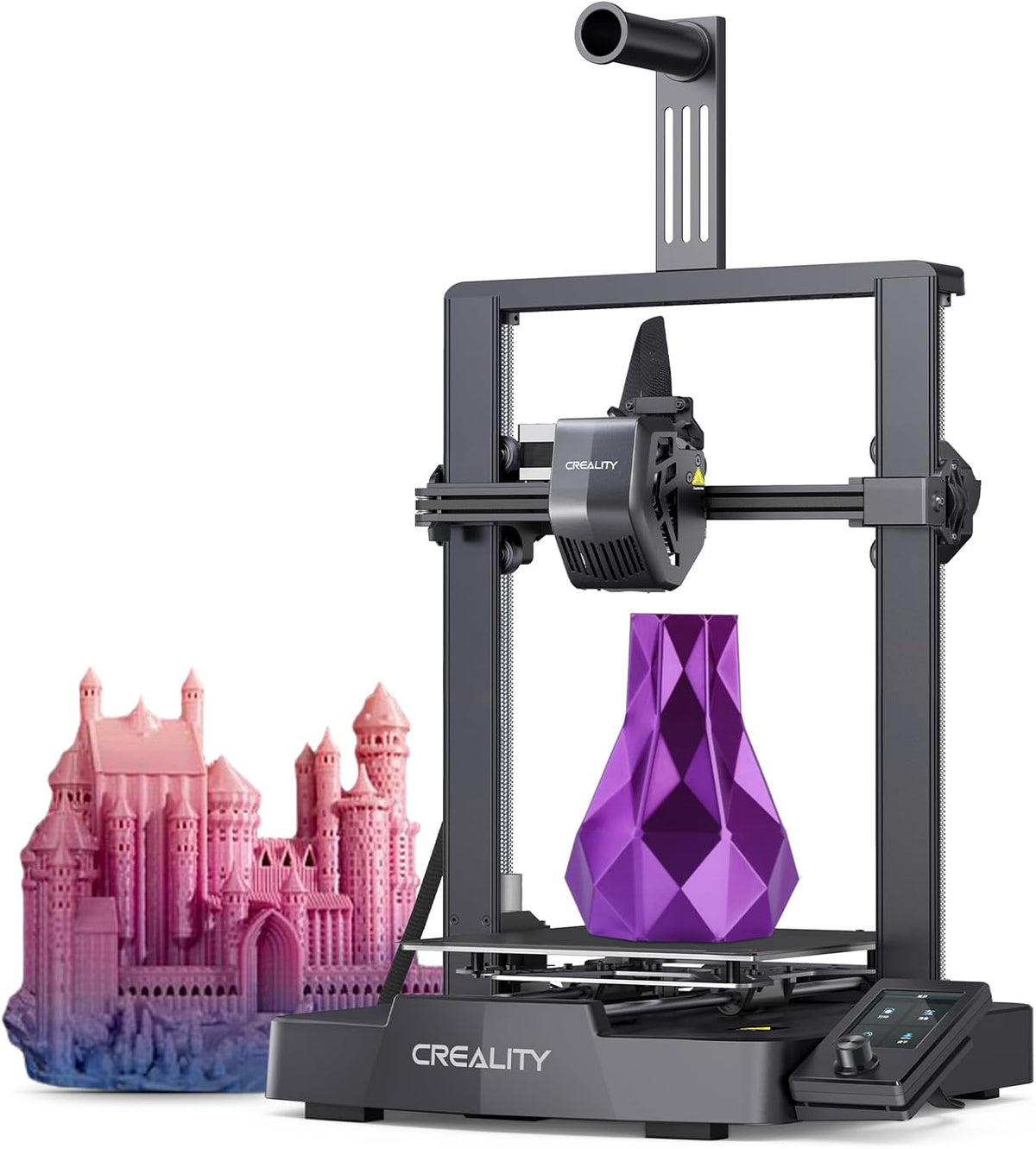
Featured image: Creality AU listing image: Ender-3 V3 SE; check the selected package.
1. Describe the symptom before changing settings
Creality's Ender-3 V3 SE diagnostic page separates a general first-layer adhesion or scraping problem from a problem concentrated in a particular area. Preserve that distinction when recording the fault; it does not establish the cause by itself.
Our suggested note has four items: the file you used, the material label, the area affected and the last change you made. A photograph showing the whole plate plus a closer view of the affected area is more useful than several nearly identical photos of a detached model. Keep device identifiers private if sharing images publicly.
2. Inspect without turning the check into a repair

The exact-model diagnostic asks users to check for residue at the nozzle and platform, particularly the platform's lower-left corner. Follow the SE manual's safety instructions: do not touch hot parts, and do not treat a visual inspection as permission to reach into moving machinery.
Wait until a condition check can be made safely. Record what you can actually see. If access requires dismantling, handling a hot component or guessing which screw to adjust, stop the precheck there. An honest description of an unresolved condition is preferable to reporting that something was cleaned or tightened when it was not.
3. Keep the comparison small and reviewable
Before any further trial, review the record of the earlier attempt. Check that you know which file, material and settings it used. Avoid changing several settings at once: that makes it difficult to understand which change affected the result.
Only proceed when there is no scraping or other unresolved safety concern. Use a modest, non-critical test rather than a valuable long print. Watch the first layer and note whether the same location is affected. Do not describe one improved patch as proof that the whole plate or the original fault has been resolved.
4. Make the stop point clear
Persistent scraping, visible plate damage or a recurring local levelling abnormality needs the correct diagnosis. Creality's source also discusses firmware and alignment actions, but those are outside this precheck guide; do not borrow adjustment steps from a similar-looking Ender model.
For support, provide the exact SE model, the symptom photographs, the test file and your brief change history. Include software or firmware version details when requested, without attempting an update simply to complete the form. That keeps the next action evidence-led and avoids repeating checks that have already been observed.
Build your CREALITY workflow with Creality AU
View Ender-3 V3 SE and use its matching owner documentation. A clear precheck record is useful progress even when the next safe step is support, not another print.
View product and package optionsTechnical references
Product photographs are from Creality AU product listings and identify the pictured hardware. Follow the linked Creality instructions for your exact model and installed software or firmware.