
CREALITY / How-to & tips
Before a first print, identify the filament system that is actually beside or mounted on your SPARKX i7. A similar product name or a familiar-looking spool photograph is not enough to choose an installation or loading procedure.
Creality's i7 documentation has separate external-spool, CFS lite and CFS Nano references. This guide helps you choose the right reference and prepare a reviewable first job. It does not replace the supplied assembly instructions or claim that every i7 package contains the same accessories. The trial and record-keeping advice is our editorial contribution.
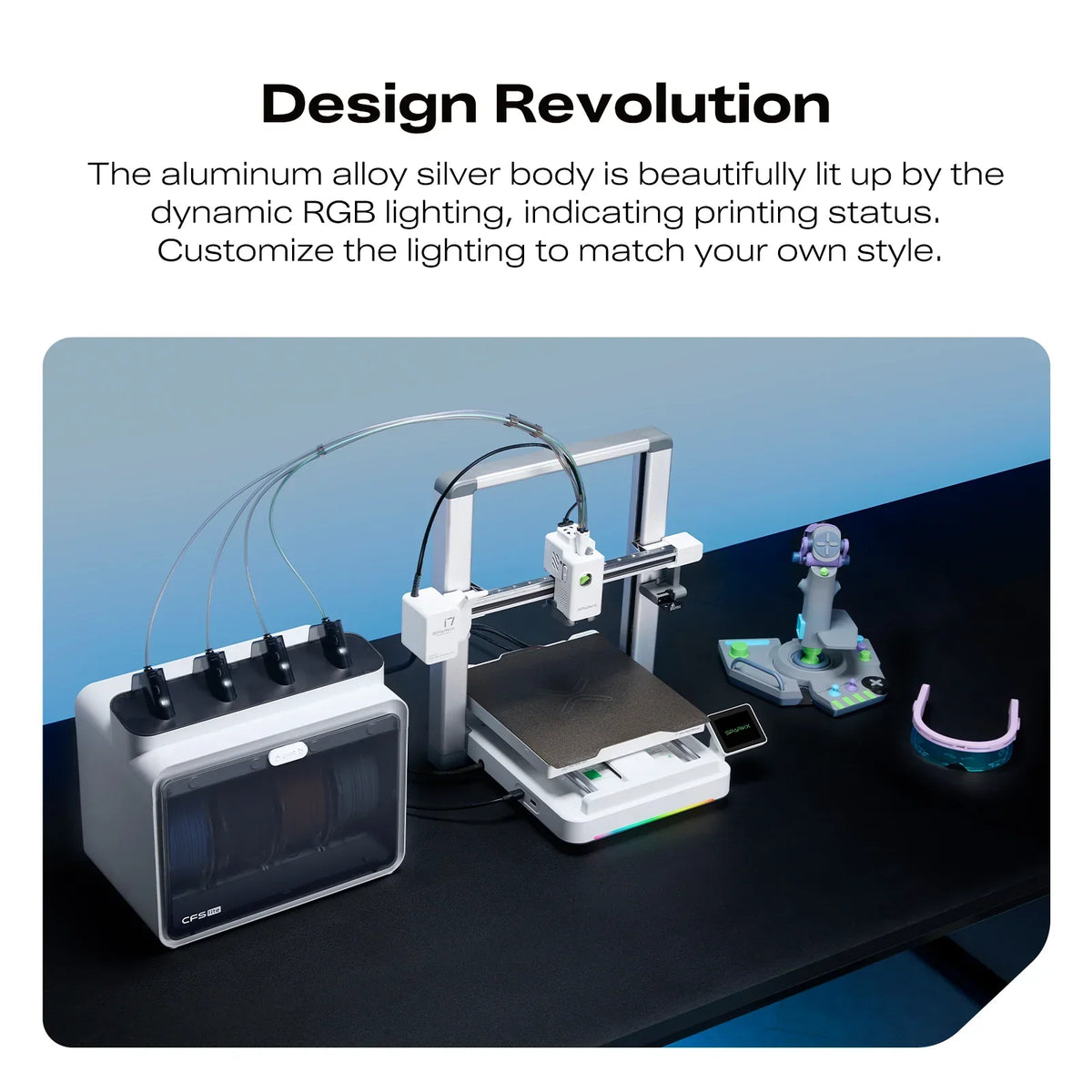
Featured image: Creality AU listing image: SPARKX i7 with CFS Lite, not the Nano package; check the selected package.
1. Match the package name to the real hardware
Keep the CFS lite first-print guide separate from the actual CFS Nano Combo setup reference. The Nano reference describes its own channel and tube arrangement. A CFS mini instruction is not treated here as a Nano instruction merely because the names look related.
Our suggested starting record is the printer model, accessory name and package version. Compare those with the documents supplied with the machine. If the hardware does not match the illustration, resolve the mismatch before handling connections or attempting a first print.
| Actual accessory | Use the matching reference |
|---|---|
| External spool holder | i7 spool-holder first-print guide |
| CFS Lite | i7 CFS Lite first-print guide |
| CFS Nano | Actual CFS Nano Combo setup reference; not CFS mini |
2. Keep the filament route and the print file aligned
The spool-holder guide is a separate route. For CFS lite, Creality documents checking material information, entering non-RFID filament details and reviewing the file-to-filament mapping before printing. Use the controls documented for the actual accessory and software, not a copied screen from another CFS system.
For your preparation note, place the material label beside the intended file and profile name. Record which route you plan to use. This is a cross-check, not a recommendation to select a convenient material name just because it makes a warning disappear.
3. Check readiness without inventing a setup shortcut
Creality's i7 calibration guide includes moving the printer among the reasons to perform calibration. Follow the matching documented routine for your setup; this article does not prescribe a service adjustment or a universal set of calibration selections.
Keep physical installation, communication cables and unfamiliar tube connections within the supplied exact-package instructions. Do not use a first-print checklist to improvise an assembly that has not been confirmed. If recognition fails, preserve the symptom and the versions involved rather than jumping into firmware recovery.
4. Make the first result easy to review
Our suggested first job is modest and non-critical. Stay available to observe the start, then compare the result with what you intended to print. Note the chosen accessory route, material and outcome so that a later change has a clear reference point.
If something is unexpected, stop and identify which part of the preparation remains uncertain. A successful small print does not establish compatibility with a different accessory or prove that an automatic-refill transition has been tested. Keep those as separate questions rather than treating the first print as approval for every future workflow.
Build your CREALITY workflow with Creality AU
Compare the listed SPARKX i7 CFS lite package and i7 CFS Nano Combo, checking the selected package and included accessories before following its matching guide.
View product and package optionsTechnical references
- Creality technical reference 1
- Creality technical reference 2
- Creality technical reference 3
- Creality technical reference 4
Product photographs are from Creality AU product listings and identify the pictured hardware. Follow the linked Creality instructions for your exact model and installed software or firmware.