
CREALITY / How-to & tips
Before sharing a scan, ask what the receiving person needs to do next. Continuing a capture project and opening a finished model are different handovers. Sending a file successfully does not by itself show that the right working information arrived.
This guide concerns Sermoon P1 only. The transfer choices below follow Creality's exact P1 documentation. The naming, review and retention checklist is our editorial advice, not a promise that another scanner or every software release has the same controls.
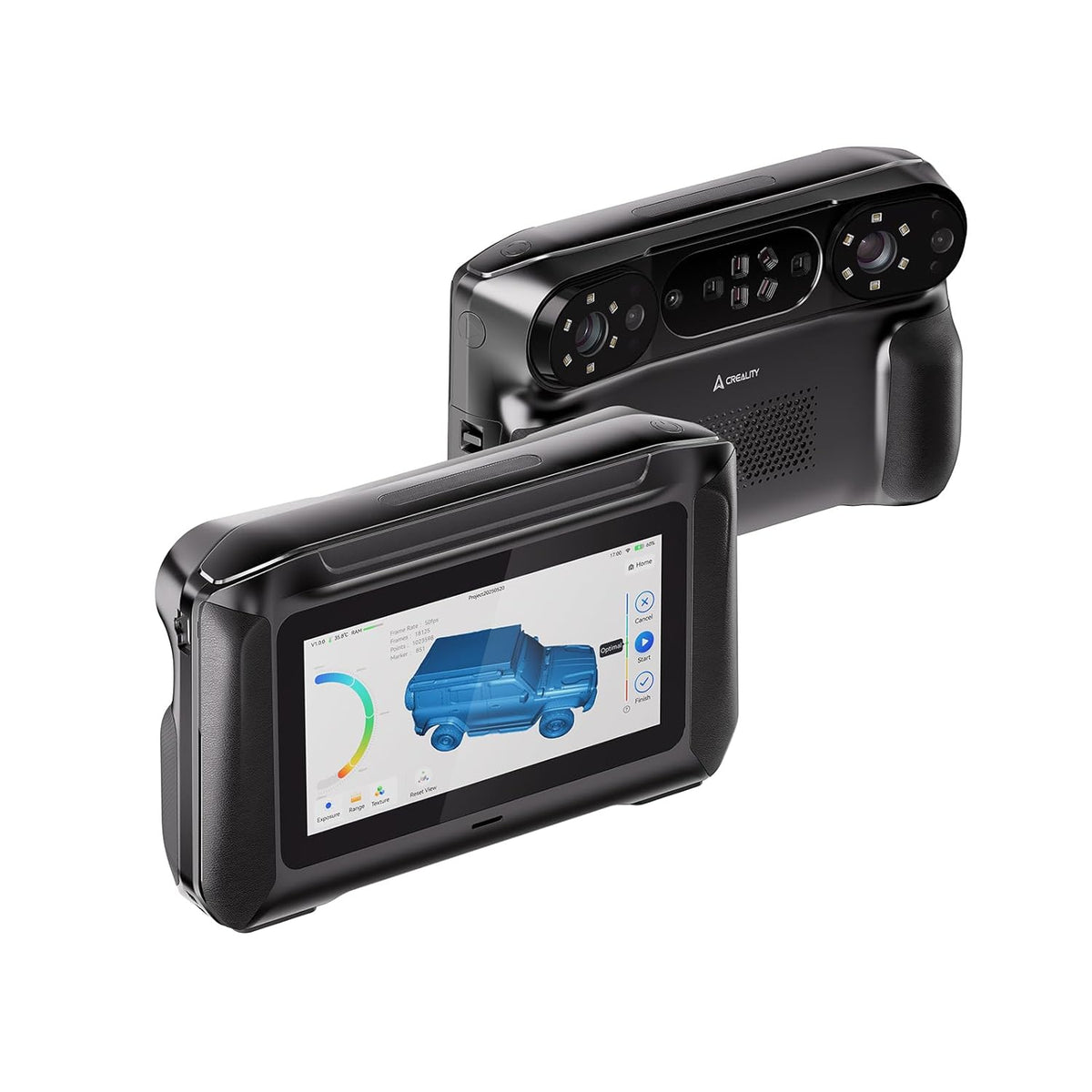
Featured image: Creality AU listing image: Sermoon P1 hardware; not a file-transfer screen; check the selected package.
1. Choose the handover before choosing the connection
The P1 sharing guide distinguishes complete-project transfer from format-specific wireless sharing. Creality warns that format-specific PC shares do not preserve the editable project workflow. Choose for the next task, not just a familiar format.
Our suggested handover note identifies the object, its revision and what the recipient is expected to check. If the recipient needs a working project, agree on that explicitly. If a model is sufficient, record the chosen format and intended destination application without inventing a project file extension.
2. Keep a wireless transfer intact until it finishes

For wireless projects, use P1 sharing controls and connect the receiving CrealityScan device to its hotspot. Confirm detection, start sharing and keep the connection intact during compression and transfer. Check completion at the receiving end.
Before starting, make the intended destination clear to the person receiving it. Afterwards, open the received item and check its identity, not just its thumbnail. Keep a brief record of what was sent so that a later correction does not become a choice between several indistinguishable copies.
3. Use the documented USB route when appropriate
For USB, Creality documents the original cable, Data Sharing on P1 and importing selected items through CrealityScan. Wait for completion, then exit sharing on P1. These controls are model-specific.
Our practical check is to locate the received items and open a representative result before packing away the setup. If you are asking for support, show the relevant transfer symptom while keeping serial numbers, hotspot details and other device identifiers out of public screenshots.
4. Verify the result and retain the starting point
Compare the delivered item with the task you agreed at the start. Does the recipient have the expected object and revision? Can they carry out the next intended action? If not, return to the handover choice rather than repeatedly sending the same file by a different connection.
Keep the original capture and a clearly named delivered copy until the handover has been checked. This guide does not require deleting anything from the P1. A completion message is useful evidence of a transfer, but acceptance still depends on opening and checking what actually arrived.
Build your CREALITY workflow with Creality AU
Explore Sermoon P1 and check its exact software and package requirements when planning the capture-to-handover workflow.
View product and package optionsTechnical references
Product photographs are from Creality AU product listings and identify the pictured hardware. Follow the linked Creality instructions for your exact model and installed software or firmware.