
CREALITY / Product & software guides
Start with the exact model and package, then open its matching official resource page. This directory connects the Creality products listed in our public printer and scanner collections when checked on 21 October 2026 with their verified Creality Wiki owner-resource hubs.
A link is a route to the manufacturer's documentation, not a promise that every accessory is included, every pictured screen matches your software or every service procedure is appropriate for customer DIY. Confirm the supplied hardware and use the instructions for that revision. Availability and documentation can change after this directory's check date.
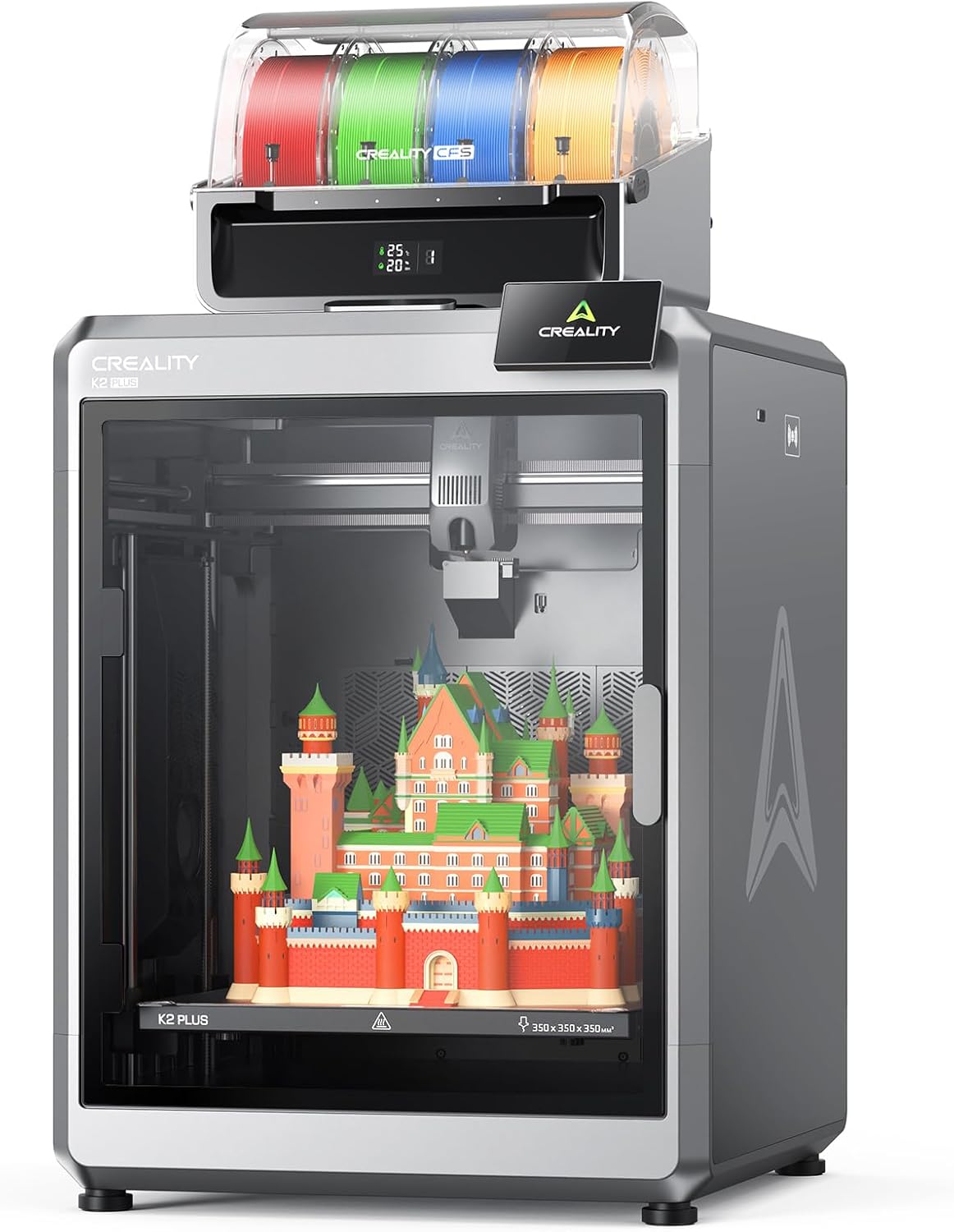
Featured image: Creality AU listing image: K2 Plus; pictured accessories do not establish package contents; check the selected package.
1. FDM printer owner resources

Ender-3 V3 SE: Product and package · Official SE owner resources. Keep SE separate from Ender-3 V3, KE and Plus instructions.
Ender-5 Max: Product and package · Official Ender-5 Max owner resources. Do not substitute the older Ender 5 Plus documentation.
K1 MAX: Product and package · Official K1 Max owner resources. Check the hardware revision before following an illustration or choosing parts.
K2: Product and package · Official K2 owner resources. Check the selected package separately from the printer's resource-page name.
K2 Pro: Product and package · Official K2 Pro owner resources. Use the Pro page rather than assuming K2 Plus settings or parts apply.
K2 Plus: Product and package · Official K2 Plus owner resources. Confirm whether the selected purchase includes CFS before following an accessory workflow.
SPARKX i7 CFS lite package: Product and package · Official i7 owner resources. Choose the CFS lite reference that matches the real accessory.
SPARKX i7 CFS Nano Combo: Product and package · Official i7 owner resources. Use the actual Nano reference; a CFS mini page is not treated as a Nano synonym.
2. Resin printer owner resources
HALOT R6: Product and package · Official HALOT R6 owner resources. Start with its own manual rather than a different HALOT model's procedure.
HALOT-X1: Product and package · Official HALOT-X1 owner resources. Check the exact supplied setup when choosing an optional-accessory reference.
HALOT-MAGE S: Product and package · Official HALOT-MAGE S owner resources. Do not drop the S when selecting its documentation.
These links locate the manufacturer's material; this directory does not reproduce resin-handling, chemical-cleaning, curing, film-replacement or internal-repair instructions. Read the complete matching safety documentation before operating the equipment.
3. Scanner owner resources

Original CR-Scan Raptor: Product and package · Official Raptor owner resources. Keep this model separate from Raptor Pro and RaptorX.
Raptor Pro: Product and package · Official Raptor Pro owner resources. A similarly named Raptor page is not a substitute for the Pro manual.
RaptorX: Product and package · Official RaptorX owner resources. Match any wireless accessory and software instructions to the actual package.
Original CR-Scan Otter: Product and package · Official Otter owner resources. Do not use Lite documentation simply because the family name matches.
Otter Lite / Lite Basic listing: Product and package selection · Official Otter Lite owner resources. Check the selected package: this link does not establish that Basic includes Lite Bridge.
Pika: Product and package · Official Pika owner resources. Use its current device and connection requirements rather than a different scanner's compatibility list.
Sermoon S1: Product and package · Official Sermoon S1 owner resources. Follow the S1 page's own software and first-scan references.
Sermoon P1: Product and package · Official Sermoon P1 owner resources. Keep P1 controls separate from the S1 and X1 workflows.
Sermoon X1: Product and package · Official Sermoon X1 owner resources. Check the matching model and installed release before applying a software or mirroring example.
4. When a resource page becomes a support question
If the machine, accessory or screen does not match the reference, pause before proceeding. Keep a note of the exact model, package and installed versions, together with a clear description of the symptom. Share only the information needed for support and keep passwords, QR codes and device identifiers out of public images.
Manufacturer hubs can include advanced service material as well as normal owner guidance. Finding a repair, firmware or calibration page does not make that operation the next safe step. This directory is a way to locate the correct source, not a replacement for diagnosis or an instruction to dismantle the equipment.
Build your CREALITY workflow with Creality AU
Return to Guides & Resources for practical reading, and use the exact-model official link above whenever you need the manufacturer's complete owner documentation.
View product and package options