
CREALITY / How-to & tips
If a first layer does not stick, start with an observation rather than a handful of adjustments. Note where the problem appears and whether anything changed before it began. Scraping is a reason to stop the attempt, not keep printing to see whether it improves.
This guide is for Ender-5 Max, not Ender 5 Plus or an Ender-3 model. The model-specific checks follow Creality's linked diagnostic. The record sheet and comparison method are our editorial suggestions; hotend service, bed adjustment and filament-detector bypass are not part of this guide.
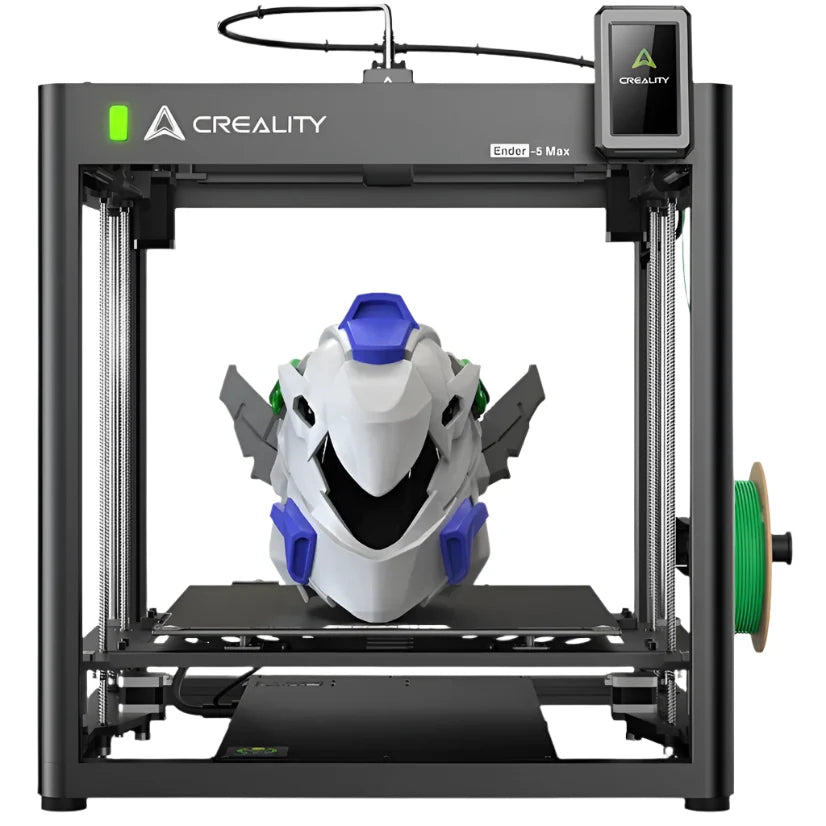
Featured image: Creality AU listing image: Ender-5 Max; check the selected package.
1. Record the conditions of the failed attempt
Before changing anything, identify the file, material and profile used. Take a photograph that shows the affected area in relation to the whole plate. A close-up alone can hide whether a problem is local or widespread.
Use a short record like the one below. It is a comparison aid, not a diagnosis or a set of replacement settings. Keep the previous attempt identifiable so that the next result has something meaningful to compare with.
| Item | Record before another test |
|---|---|
| File | Name and revision used |
| Material | Spool label and selected profile |
| Symptom | Affected area and a clear photograph |
2. Review visible conditions safely
Creality's Ender-5 Max non-stick-platform diagnostic identifies residue and plate-condition problems among the things to check, including visible damage or bulging. It also recommends the official slicer with the default parameters for the corresponding filament.
Make a condition check only when it is safe to do so. Do not reach into moving machinery or touch hot parts. If confirming a condition requires dismantling, tightening components or guessing about the surface underneath, record the uncertainty and stop there. Do not describe an unperformed repair as a completed check.
3. Keep any comparison controlled
Compare the actual spool label with the profile you intended to use. If the identity is uncertain, resolve it before testing. Do not select a familiar profile simply because it removes a warning or produces a different-looking preview.
When there is no unresolved scraping, damage or safety concern, use a modest, non-critical trial and observe its first layer. Change one justified item at a time and note the outcome. One successful patch does not prove that the entire plate or the original fault has been resolved.
4. Know where the precheck ends
The manufacturer diagnostic also contains mechanical and offset-related actions. They are not reproduced here as a universal fix. A persistent fault, recurring scraping or visible damage needs the correct model-specific diagnosis rather than a longer sequence of guesses.
For support, retain the photographs, file identity, material/profile record and a brief list of what actually changed. This gives the next person useful evidence without requiring you to alter firmware, reroute filament or take the machine apart.
Build your CREALITY workflow with Creality AU
View Ender-5 Max and use its exact owner resources. Keep a routine first-layer precheck separate from service work or a specialist material setup.
View product and package optionsTechnical references
Product photographs are from Creality AU product listings and identify the pictured hardware. Follow the linked Creality instructions for your exact model and installed software or firmware.