
CREALITY / How-to & tips
Before sending a multicolour job, compare three things: what the file asks for, what is physically loaded and which slots the mapping selects. A completed mapping is something to review, not evidence that the intended materials have been chosen.
This guide uses independent K2 and K2 Pro sources. It does not borrow K2 Plus instructions or imply that CFS is included in every package. Manufacturer-specific notes are linked below; the review table and trial plan are our editorial suggestions.
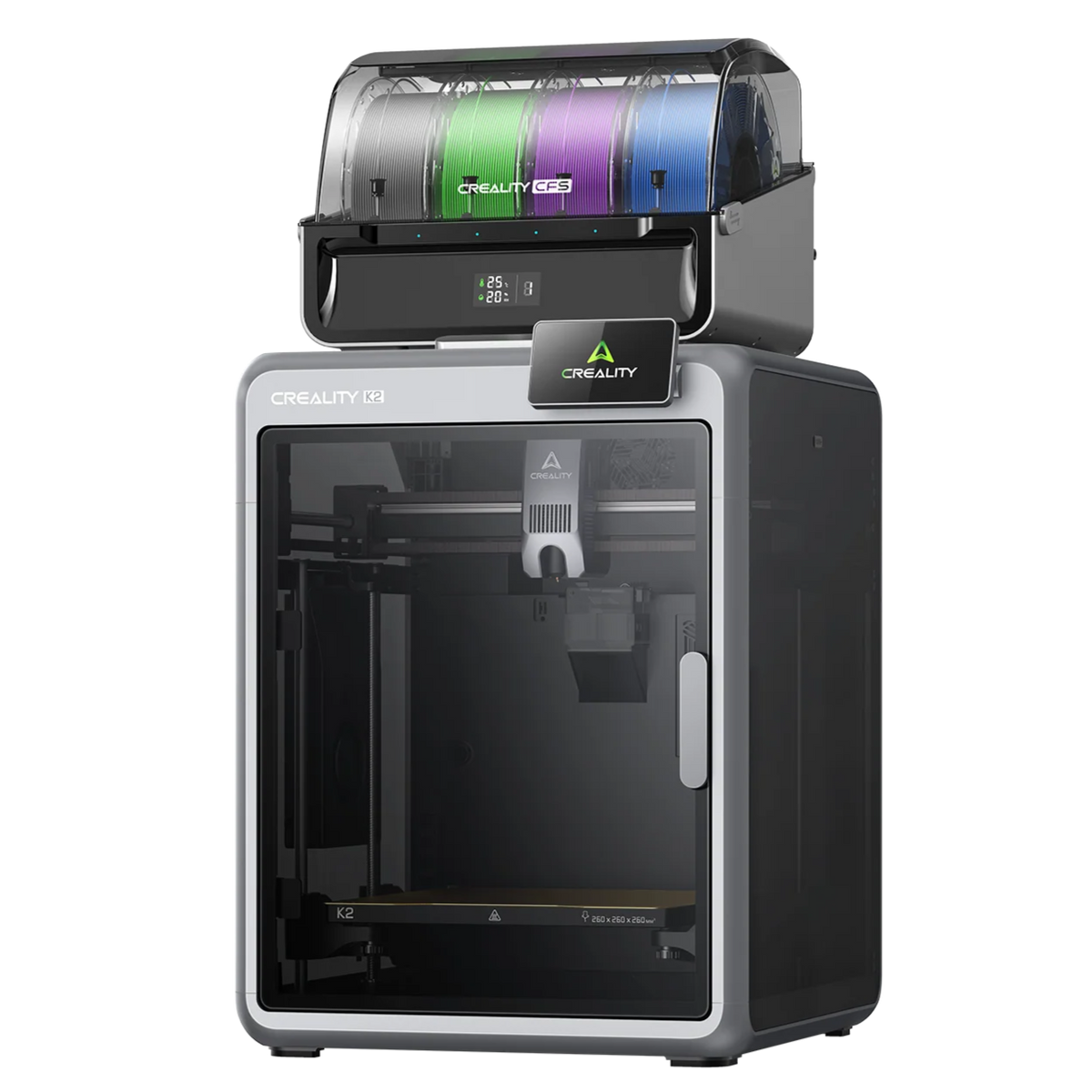
Featured image: Creality AU listing image: K2; a pictured CFS is package-dependent; check the selected package.
1. Start with the correct printer and accessory
For K2, the exact K2 multicolour guide asks users to select K2 in the slicer and review file-to-filament mapping. Its source distinguishes enabled-CFS printing from external-rack printing; with CFS disabled, a multicolour file is treated as single-colour.
For K2 Pro, use the separate K2 Pro multicolour guide. It independently documents choosing K2 Pro and reviewing the mapping and filament source. Similar-looking screens are not a reason to substitute another model's profile or accessory procedure.
2. Compare the request, the spool and the choice
Both exact-model guides distinguish the file's requested material/colour from the assigned slot and describe manually selecting filament when mapping is unresolved. Review a substitution instead of assuming that an automatically selected different colour is what the job requires.
Our suggested check is to record the items below against the actual spools. Treat colour as one part of the request, not a substitute for identifying the material. Resolve an uncertain label or an unintended selection before sending the job.
| Compare | Question before sending |
|---|---|
| File request | What material and colour does this job need? |
| Physical slot | Which labelled spool is actually loaded? |
| Mapping choice | Is that the intended slot, or an unresolved substitution? |
3. Make the selected route explicit
Write down whether you intend to use CFS or the external spool. If the selected route and physical setup do not agree, pause before printing. Do not use this checklist to improvise tube changes or an accessory installation.
Keep the printer profile, material identities and mapping together in your job notes. If someone else prepares the next print, those notes explain the intended result without relying on a screenshot whose software version or slot arrangement may have changed.
4. Review a modest trial before a valuable job
Our suggested first check is small and non-critical. Stay available to observe the start and compare the result with the recorded intention. A print that completes is not automatically the correct material or colour combination.
If a mismatch remains, preserve the file identity, selected profile and observed slot choice for support. Keep automatic refill as a separate question: correct file mapping does not demonstrate that a later run-out transition has been tested.
Build your CREALITY workflow with Creality AU
Compare K2 and K2 Pro, checking the exact selected package and its CFS arrangement rather than assuming accessory inclusion.
View product and package optionsTechnical references
Product photographs are from Creality AU product listings and identify the pictured hardware. Follow the linked Creality instructions for your exact model and installed software or firmware.