
REVOPOINT / How-to & tips
Preparation often determines how much cleanup a scan will need. A moving part, hidden underside or unsuitable surface can create a problem that additional frames and more demanding processing cannot solve.
Use this bench checklist before choosing settings. It combines Revopoint's object-preparation and complex-shape guidance into a practical sequence, without assuming that every scanner, material or finish needs the same treatment.
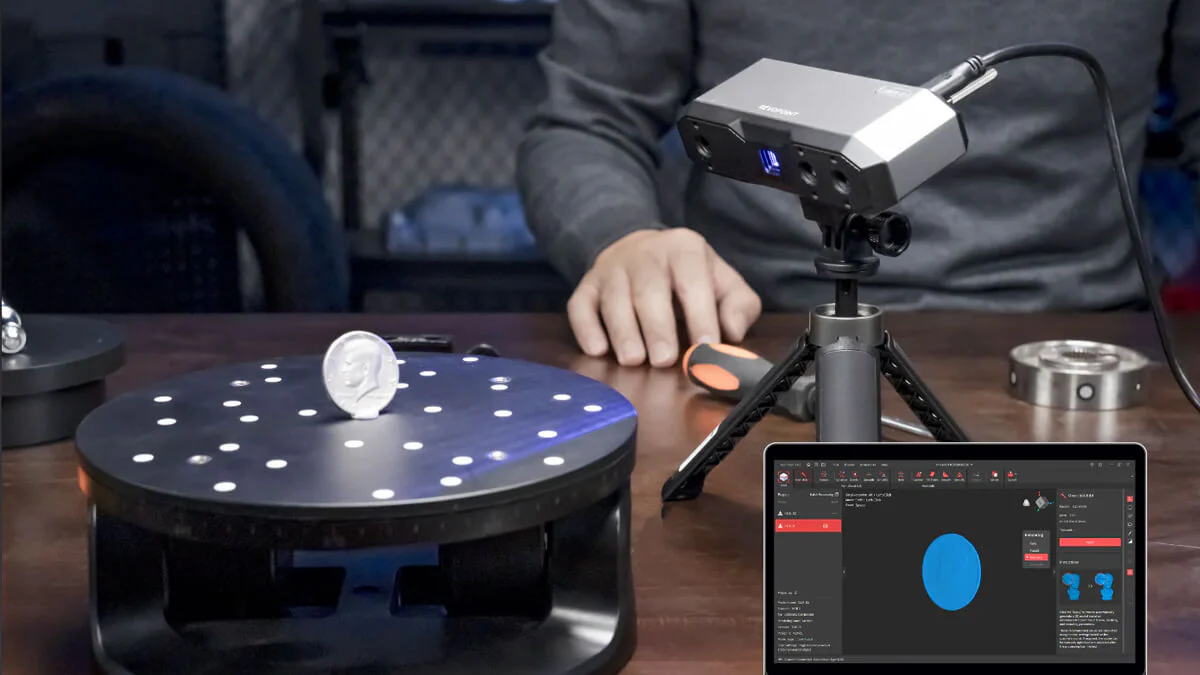
Cover: Supplier illustration introducing object assessment before capture.
1. Define the required result and secure the object
Identify the smallest useful feature and the areas that matter to the job. A broad shape study has different needs from a mounting interface. Choose a supported capture approach for the actual size rather than relying on a generic small-or-large label.
Hold the object securely without distorting it. Check that supports do not hide the underside or an important edge. If using a turntable, confirm suitability, clearance and stable rotation before capture. The part must not slide or flex relative to its tracking references.
2. Assess the surface without damaging it

Look for dust, moisture, glossy coatings, transparent areas and very dark regions. These can affect returned light differently. Use only a cleaning method appropriate to the material; valuable, fragile or heritage objects may need an authorised conservator's direction before any treatment.
Where a suitable scanning coating is needed, follow the product's safety and application instructions and confirm compatibility with the finish. Do not assume a disappearing coating leaves every material unaffected. Avoid household-spray substitutes and record any preparation that could influence dimensional interpretation.
3. Provide references and an achievable viewing route

Smooth and repetitive shapes can need suitable markers or a feature-rich reference, depending on the scanner and mode. Keep references stable and visible, while leaving the surfaces you need unobstructed. More targets cannot compensate for targets that are hidden from view.
Start with accessible outer geometry, then approach recesses gradually while maintaining overlap. Plan another angle for an occluded area rather than forcing the scanner into an unsuitable distance. On large objects, define adjoining sections and shared geometry before recording.
Deep holes, slots and undercuts: check visibility first. Can the projected light and the scanner's cameras reach the surface you need? A blocked view is different from a visible surface returning poor data. Try a safe change of angle while retaining recognised geometry; if the surface becomes accessible but data remains weak, investigate the selected mode, exposure and surface response.
The REVOPOINT POP 4 has a Single-Line Deep Hole option within Laser Line scanning, which requires marker tracking. Follow the POP 4 manual for the actual setup. This is not a promise that every recess is measurable. If an internal surface remains hidden, record the missing area and use another suitable measurement method. Hole filling creates an estimated surface, not evidence that the original surface was captured.
4. Test the difficult region first
Make a short trial over the surface or transition most likely to fail. Check exposure, tracking and actual point-cloud coverage. If the same area repeatedly disappears, change the viewing approach or preparation before capturing the full object.
Include setup, cleanup and checking in the time plan. Preserve the raw project and photograph a successful physical arrangement for repeat jobs. Finishing capture quickly is not a useful saving if the model then needs extensive repairs or another visit to the object.
Build your REVOPOINT workflow with Creality AU
Good preparation is object-specific and reversible wherever possible. Explore the REVOPOINT 3D scanner range, then match the scanner, references and surface treatment to your actual task rather than a universal recipe.
Explore REVOPOINT 3D scannersImages supplied by Revopoint and reproduced with permission. Supplier and community examples are not independent tests by Creality AU. Back to Guides & News