
REVOPOINT / Product guides
The right MIRACO mode depends on more than the overall size of an object. A broad panel and a small mounting detail on that same panel may need different capture approaches. Decide which features the finished model must preserve before choosing a mode.
Revopoint's Near/Far guide covers the MIRACO series. This practical version concentrates on coverage, detail and continuity rather than repeating numerical specifications from the older newsletter.
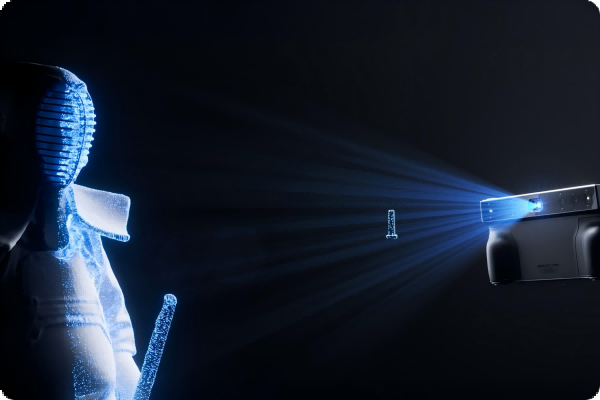
Cover: Supplier introduction to selecting Near and Far capture approaches.
1. Begin with the object's useful scale

Identify the smallest feature that matters to the project, then consider how much of the object you need. Capturing an entire large assembly at the most detailed setting can add work without improving the information needed for the next step.
For broad forms, Far mode offers a wider capture approach. For small features, Near mode provides a closer-detail approach with a smaller visible region. Treat these as task choices, not as a ranking where one mode is always better.
2. Stabilise smaller-object capture

A small object can move out of the useful view with only a slight hand movement. Secure it on an appropriate support and, where suitable, use a compatible turntable to make the relative movement controlled and repeatable.
Make a short trial scan before completing a full rotation. Watch the working-distance guidance and the live geometry, especially at thin edges or recesses. If tracking struggles, improve visible reference features and the capture angle instead of simply adding more frames.
3. Test the trade-off on medium objects
A medium-sized decorative or mechanical object may be captured using either approach. If the aim is overall shape, prioritise practical coverage. If a fine relief or small interface is important, test whether the selected approach actually represents it.
Inspect the trial from several directions. Compare difficult regions with the physical object rather than relying on the front view alone. Estimate the extra passes and processing needed before committing to a detailed capture of the entire subject.
4. Plan a connected transition when switching
If your model and software support switching during a project, pause before changing modes. Re-establish the appropriate working distance and aim at a recognisable region already captured, with enough shared geometry to support continuity.
Resume cautiously and immediately inspect the join. Doubled outlines or an offset surface mean the transition needs attention. Keep the raw project and avoid repairing an uncertain join with smoothing. Where a combined capture is unsuitable, plan separate overlapping scans and verify their alignment.
Build your REVOPOINT workflow with Creality AU
A useful test is a familiar object with one broad area and one small feature: compare the result, not just the capture time. Explore the MIRACO and confirm mode procedures for your exact series model.
View products and package optionsImages supplied by Revopoint and reproduced with permission. Supplier and community examples are not independent tests by Creality AU. Back to Guides & News