
REVOPOINT / How-to & tips
A scan is not finished when capture stops. Supports, stray points and uneven coverage can remain, while aggressive cleanup can remove the very features you needed. The useful goal is a clean representation of the object, not the smoothest possible image.
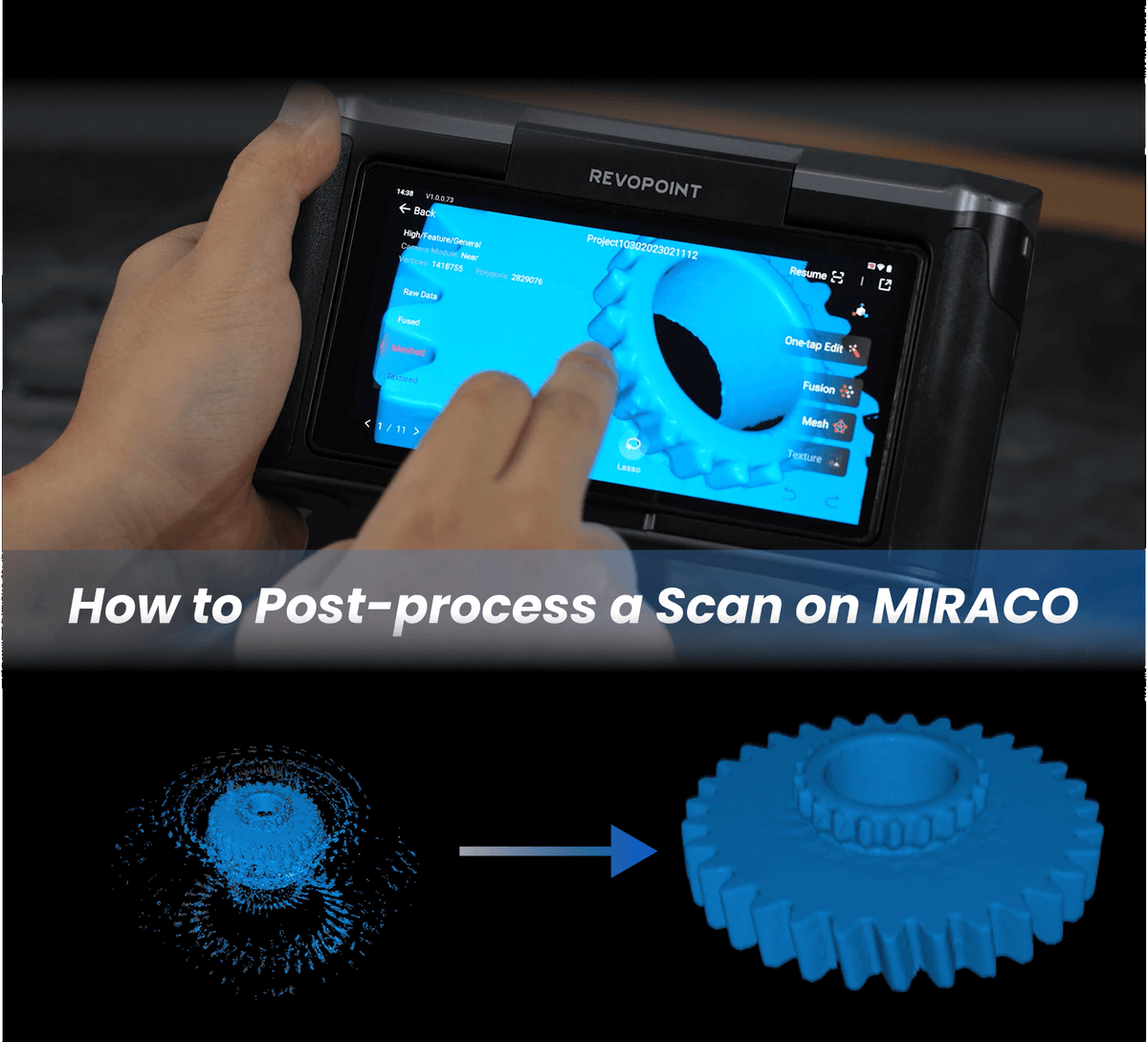
Revopoint's MIRACO processing demonstration offers a sensible sequence: inspect, separate unwanted data, fuse and review the mesh. Keep the original project so each editing decision remains recoverable.
Cover: Supplier illustration introducing MIRACO scan cleanup and processing.
1. Inspect automatic processing before accepting it

Automatic editing can provide a useful first result, but examine it from several directions. Look for pieces of the turntable, connected support material, floating fragments and surfaces that should remain separate. An object that looks complete from above may hide a poor underside.
Compare the processed result with the raw capture. If an important edge disappeared, return to the original rather than trying to reconstruct it from an already simplified mesh. Save clearly labelled working versions when testing different processing choices.
2. Separate unwanted geometry carefully

Use the available selection tools to isolate the support and background, checking the view before deleting anything. Rotate the model after each significant selection so you can see whether the selection includes an important underside or thin projection.
If the support and object are difficult to distinguish, improve the next capture arrangement. Raising a part on a suitable smaller support can create visible separation, provided the part remains secure and the support does not hide essential geometry. Better preparation can reduce destructive editing later.
3. Fuse for the detail the job requires
Choose point spacing with the intended result in mind. Denser data may retain smaller features, but it also increases processing demand and cannot repair an incorrectly aligned scan. Inspect the fused cloud for repeated surfaces and gaps before generating a mesh.
Remove isolated fragments cautiously. A small disconnected region could be unwanted noise, but it could also be a legitimate part of the captured object. Compare the selection with the physical item, and avoid assuming that every automatic detection should be deleted.
4. Preserve openings and check the export

Apply smoothing sparingly around gear teeth, embossed details, sharp edges and small recesses. Inspect those regions after each pass. A cosmetically cleaner surface can be less useful if it changes the shape needed for measurement or design.
Review hole filling individually wherever practical. A through-hole is not a defect merely because the software can close it. After any texture work, reopen the exported file and check geometry, scale and important openings in the destination application.
Build your REVOPOINT workflow with Creality AU
Use the same review sequence on each project and record uncertain areas instead of hiding them. Explore the REVOPOINT MIRACO and retain both the capture and the checked final model.
View products and package optionsImages supplied by Revopoint and reproduced with permission. Supplier and community examples are not independent tests by Creality AU. Back to Guides & News