
REVOPOINT / How-to & tips
A scan from above may miss the underside of an object. A second view can cover that gap, but the two captures still need a trustworthy join. Treat alignment as a checkable part of the job: plan what the views share, compare their shapes, and keep a route back to the originals.
This guide covers merging scans in Revo Scan 6, not Revo Measure inspection alignment or the built-in MIRACO interface. The planning and visual checks below are a practical checklist, not a dimensional accuracy test.
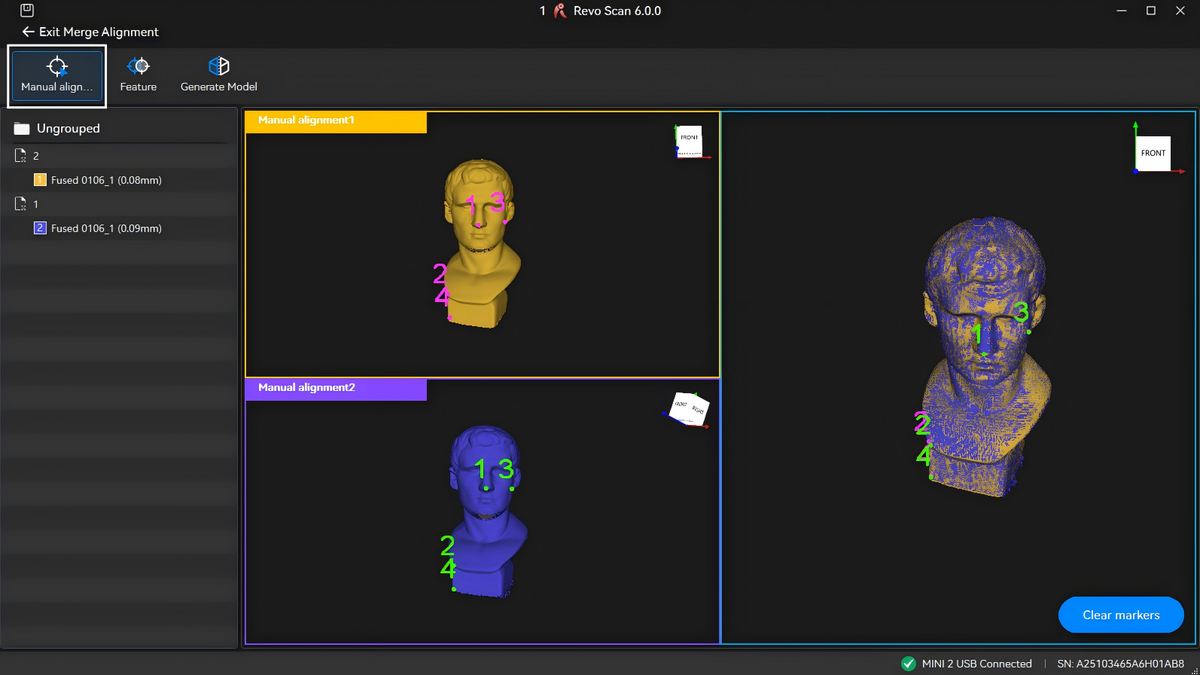
Featured image: Revopoint's Revo Scan 6 manual shows corresponding points selected on two captures. The example is a software illustration, not a Creality AU test.
1. Keep the processing stages separate
Fusion combines captured frames into a point cloud; merging brings separate partial scans together; meshing creates a surface from points. In Revo Scan 6, fuse each scan before aligning it.
Give each capture a useful name, such as top, underside or left side. Before joining them, check that they describe the same object in the same condition. A clip that has moved, a flexible edge that has bent, or an attached part that has rotated needs investigation, not an alignment workaround.
2. Plan the shared area before changing the view
Start with a simple question: which recognisable features will appear in both captures? A distinctive corner, recess or group of details makes a more useful reference than an isolated patch of plain surface. Photograph or note the intended join before repositioning the object.
Keep the object stable within each pass. When turning it over, retain enough surrounding geometry in the next capture to compare the views. Avoid treating two non-overlapping patches as though the software can establish their relationship from appearance alone. Capture a connecting view if the join remains uncertain.
3. Choose feature or manual alignment

Feature Alignment matches overlapping geometry automatically; Revopoint recommends around 40–50% overlap for best results. Manual Alignment uses at least three corresponding point pairs, spaced across both models, and joins two models at a time.
For a manual attempt, choose locations you can identify confidently in both views, not merely similar-looking points. Check each pair against neighbouring details. If repeated ribs or identical holes make the correspondence ambiguous, stop and reconsider the capture rather than selecting a convenient match.
4. Inspect the join from several angles

With Feature Alignment, use Preview Alignment before generating the merged model. In either route, inspect the result before continuing.
Rotate the model and examine the shared area from the front, side and an oblique view. Look for doubled edges, offset holes, a sudden step or two competing surface layers. Then check a second recognisable area away from the first. A convincing join in one small patch is not enough reason to accept the whole model.
5. Keep the accepted result recoverable
Save the original captures and identify the merged result separately before further editing. Record which views were used and any unresolved area. If a join looks wrong, return to the alignment or capture stage; do not smooth the seam simply to make the preview look tidy.
For preparation before another pass, read our object preparation guide. For later cleanup, the MIRACO cleanup guide discusses preserving real detail; its interface examples are MIRACO-specific.
Build your REVOPOINT workflow with Creality AU
Check current product details and software requirements on our REVOPOINT POP 4 and REVOPOINT INSPIRE 2 pages before choosing your scanning setup.
View product and package optionsTechnical references
Software illustrations are from Revopoint documentation; product diagrams are supplied by Revopoint. Interface details may vary with the installed version.